
Smart Cloak
A flexible cloaking tool that controls page display states to help your ads pass review smoothly.
Smart Cloak is a paid feature. Please contact your Customer Success Manager to activate it.
Step 1 - Create a Cloak Link
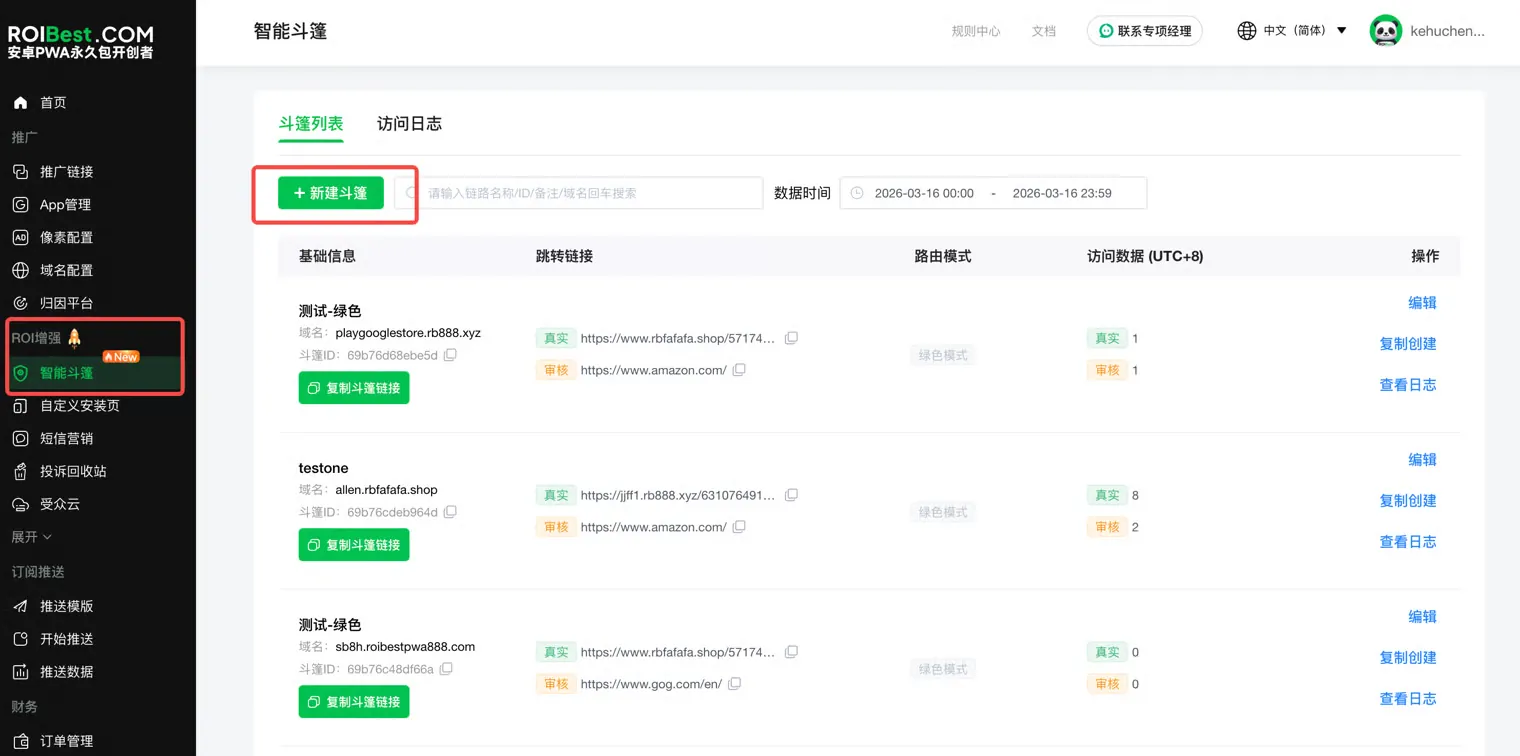
Once activated, the Smart Cloak feature will appear under the ROI Enhancement section. Click to enter, then select + New Cloak.
Step 2 - Link Configuration
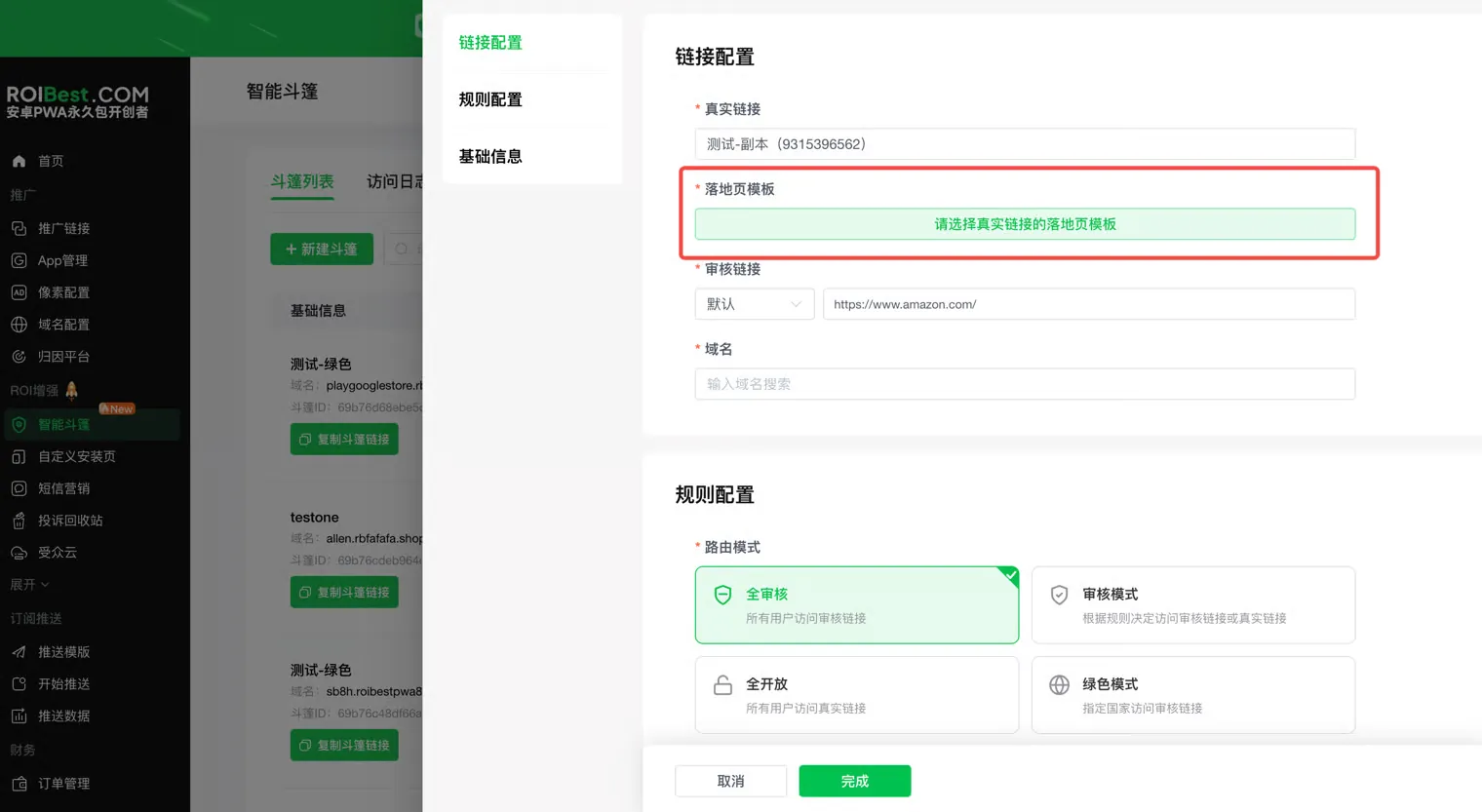
- Real Link: The actual PWA promotion link used for ad delivery. Select a pre-configured PWA promotion link from the dropdown list (the dropdown displays the link name and link ID — you can copy the link name or ID from Promotion Links and search for it in the search box).
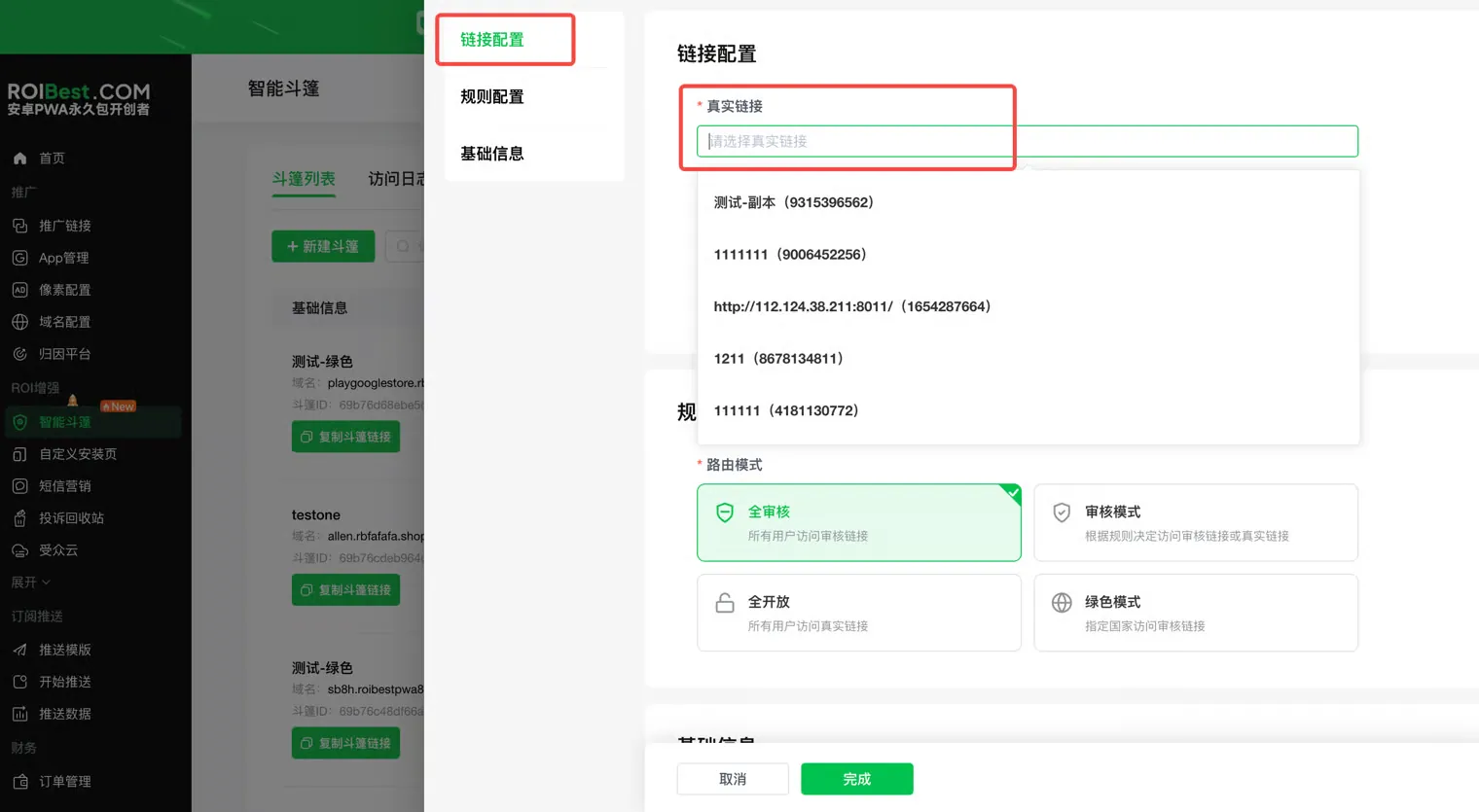
Note: Only standard links and clean short links support cloaking. Shield links do not support cloaking.
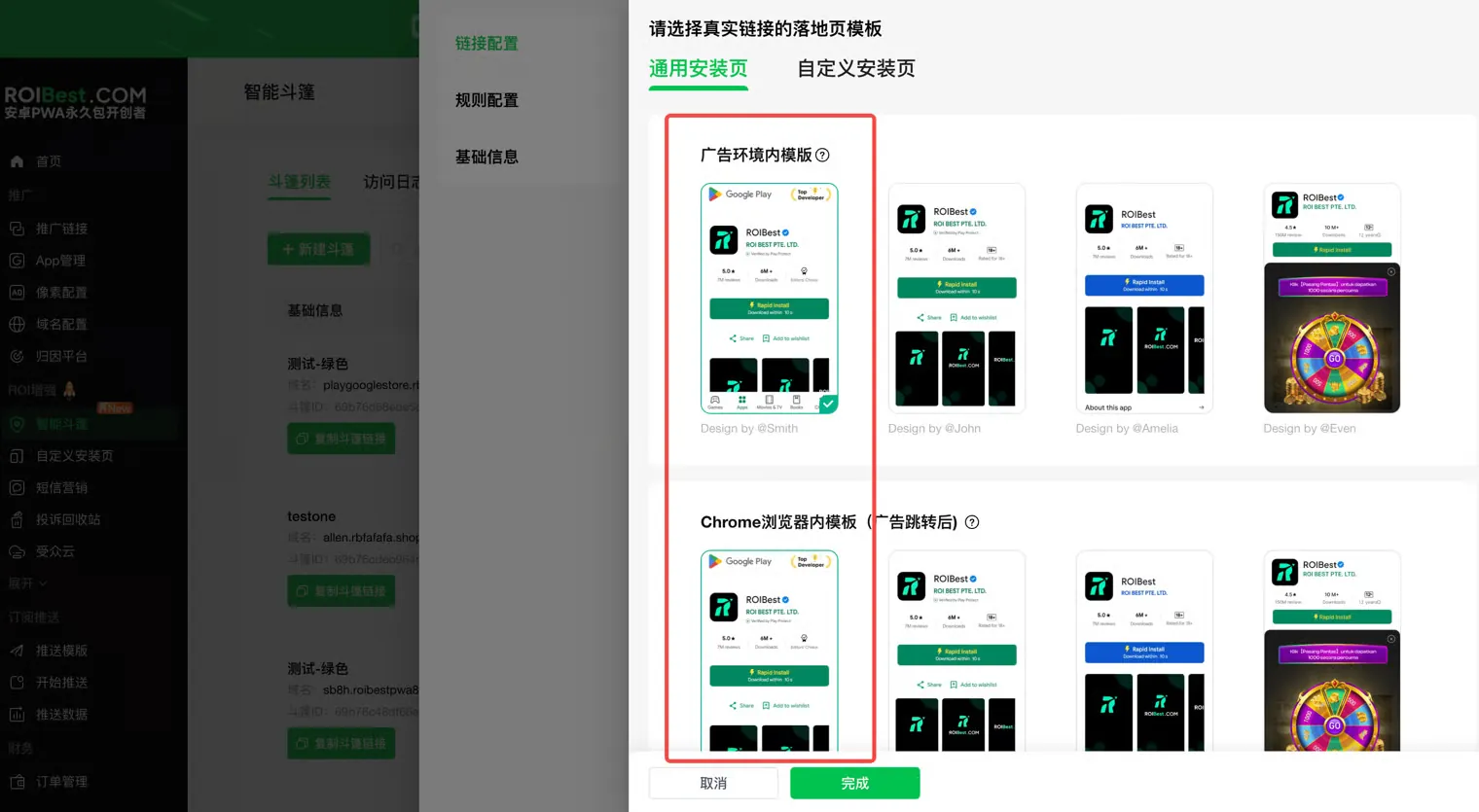
- Landing Page Template: Select the landing page template for the real link.
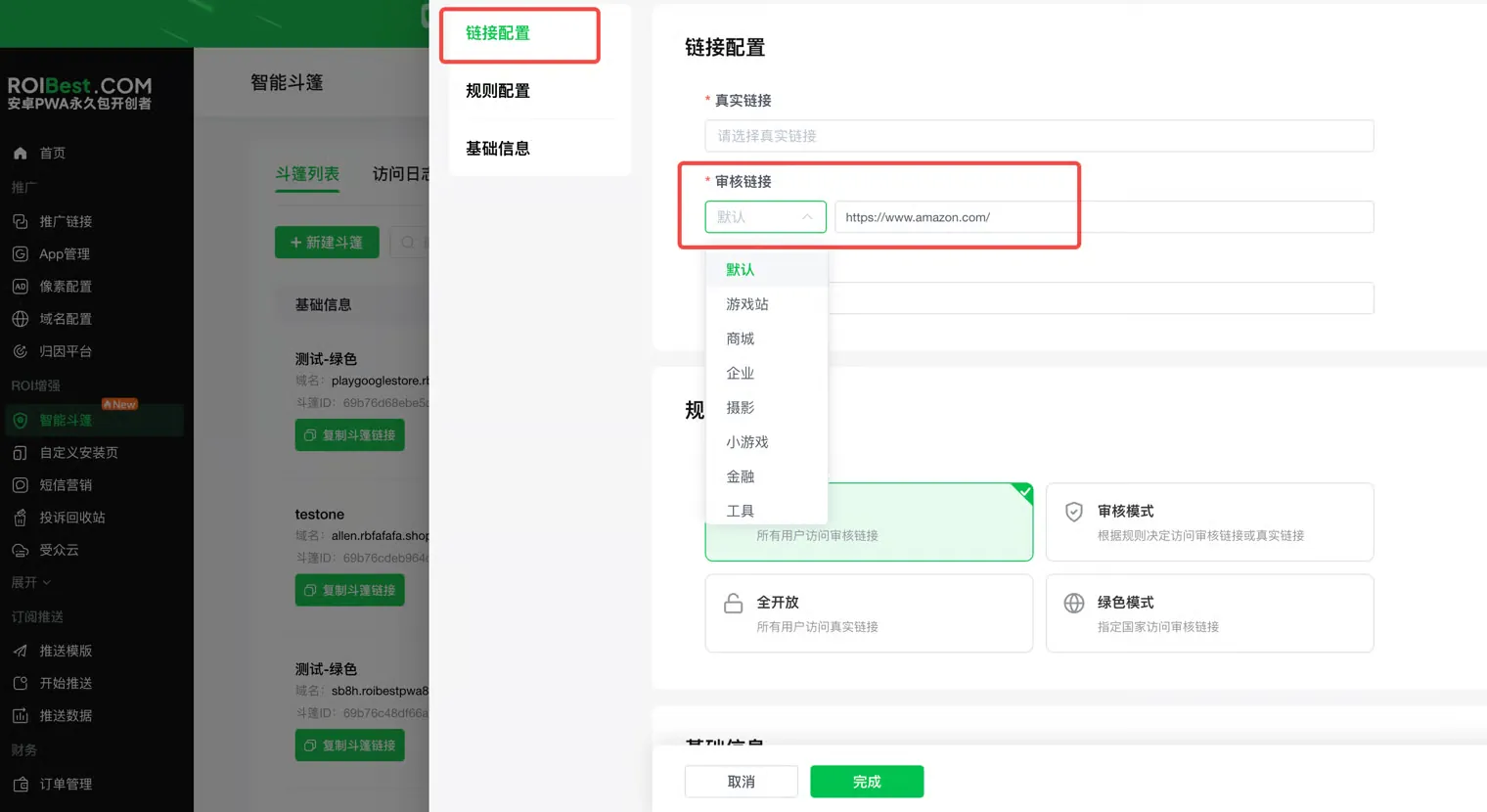
- Domain: This is the domain for the cloak link. Select a domain already configured in the backend, or manually type to search for a domain.
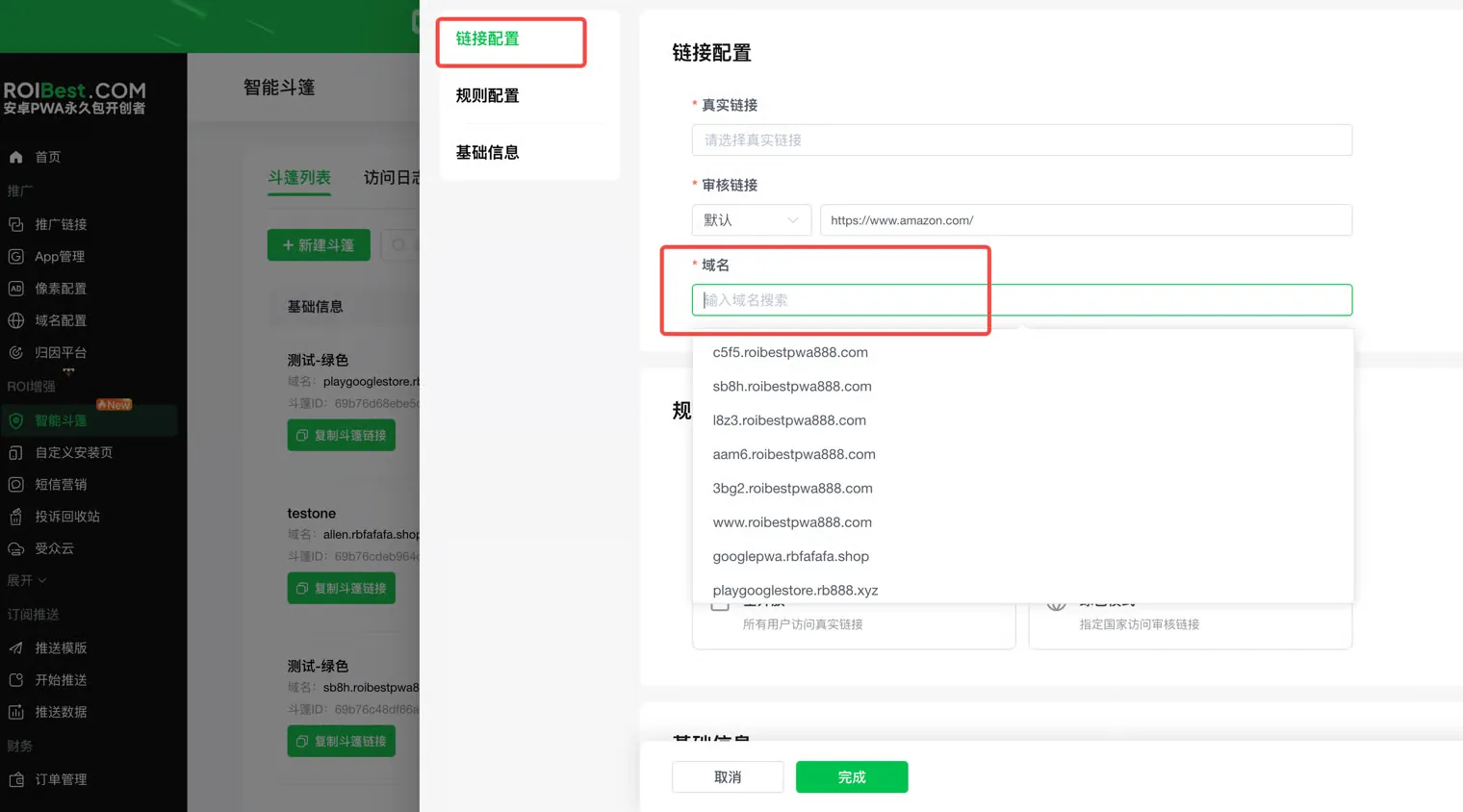
Note: Domains labeled as Shield or Short Link cannot be used as cloak domains.
Rule Configuration
Choose a routing mode and strategy based on your actual ad review and conversion requirements:
- Real-time Behavior Detection: Intelligently identifies and routes traffic — no manual review rules needed.
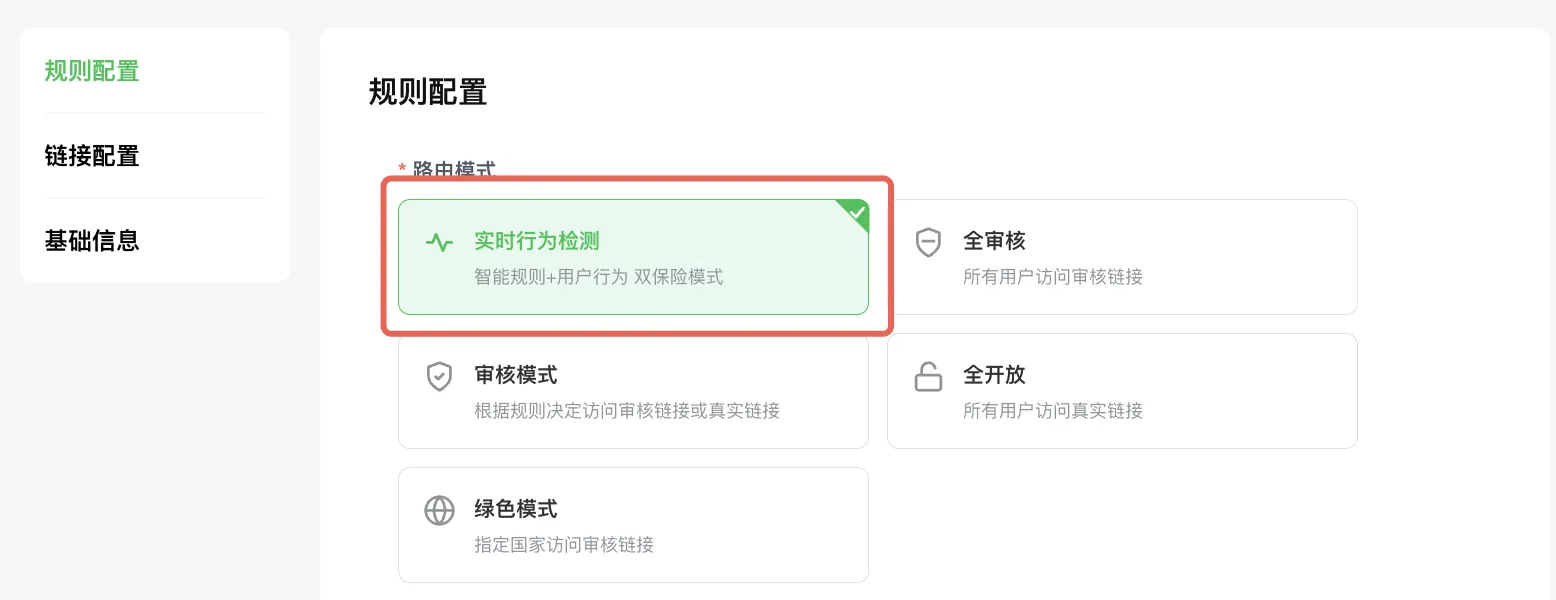
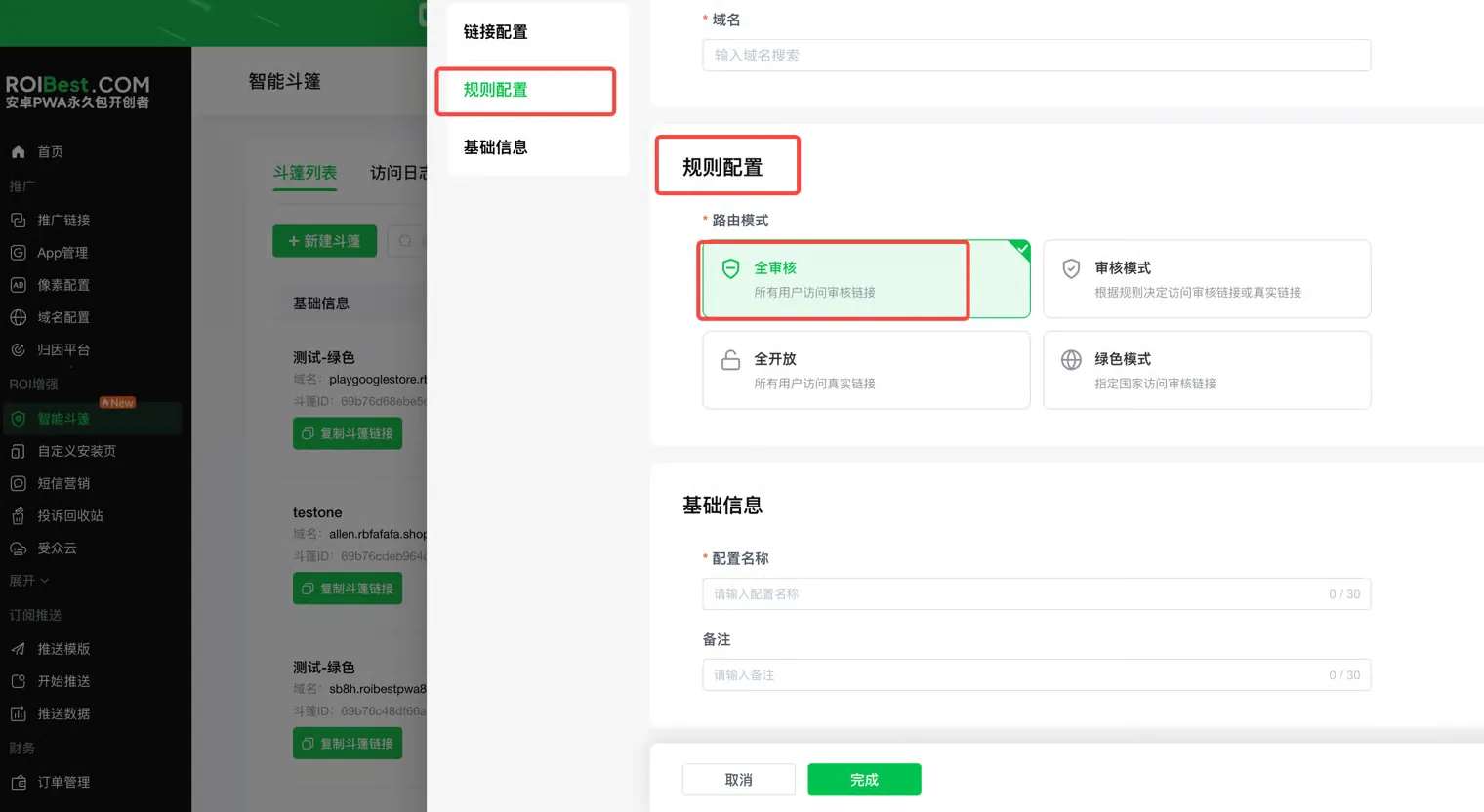
- Full Review: All traffic is directed to the review link.
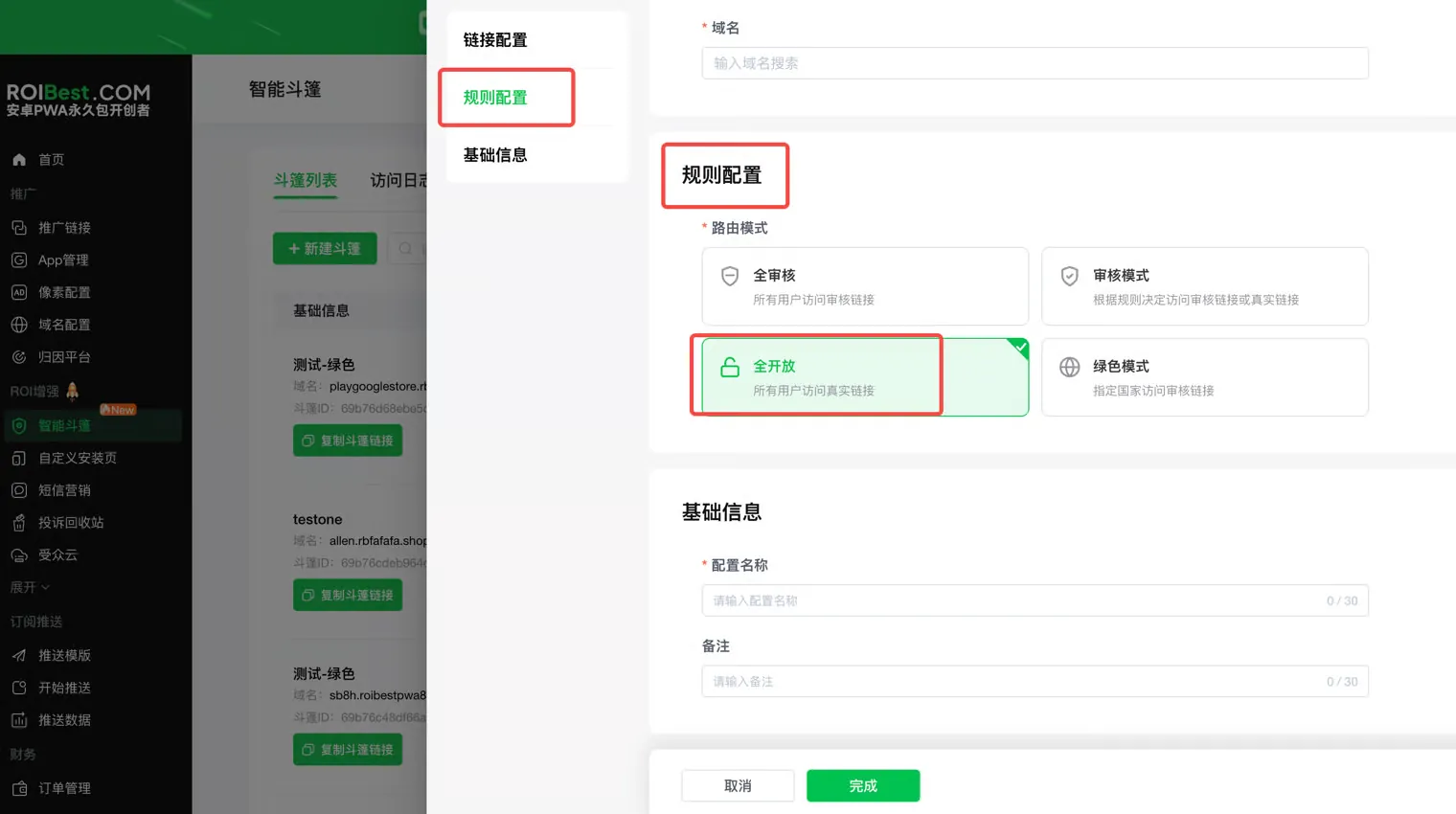
- Full Open: All traffic is directed to the real link.
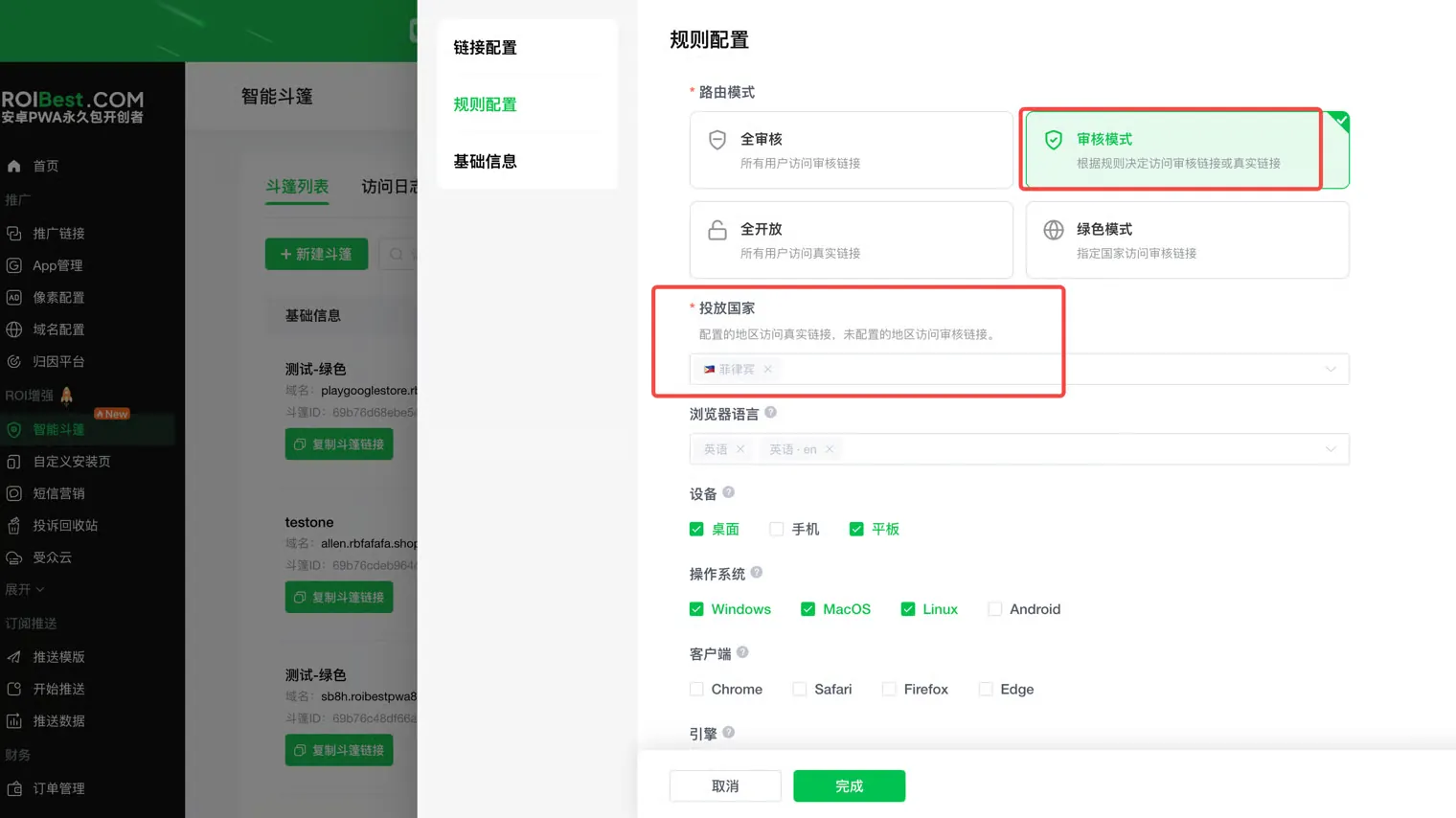
- Review Mode: Traffic is routed to either the review link or the real link based on configured rules.
Target Countries: Traffic from selected countries/regions is directed to the real link; traffic from unselected countries/regions goes to the review link.
- Green Mode: Designate specific countries to see the review link.
Target Countries: Traffic from selected countries/regions is directed to the review link; traffic from unselected countries/regions goes to the real link.
The following countries and regions are selected by default. You can remove or add countries/regions based on your campaign needs:
China, Hong Kong (China), Singapore, United States, Ireland, Canada, Australia, Denmark, Sweden, United Kingdom, Switzerland
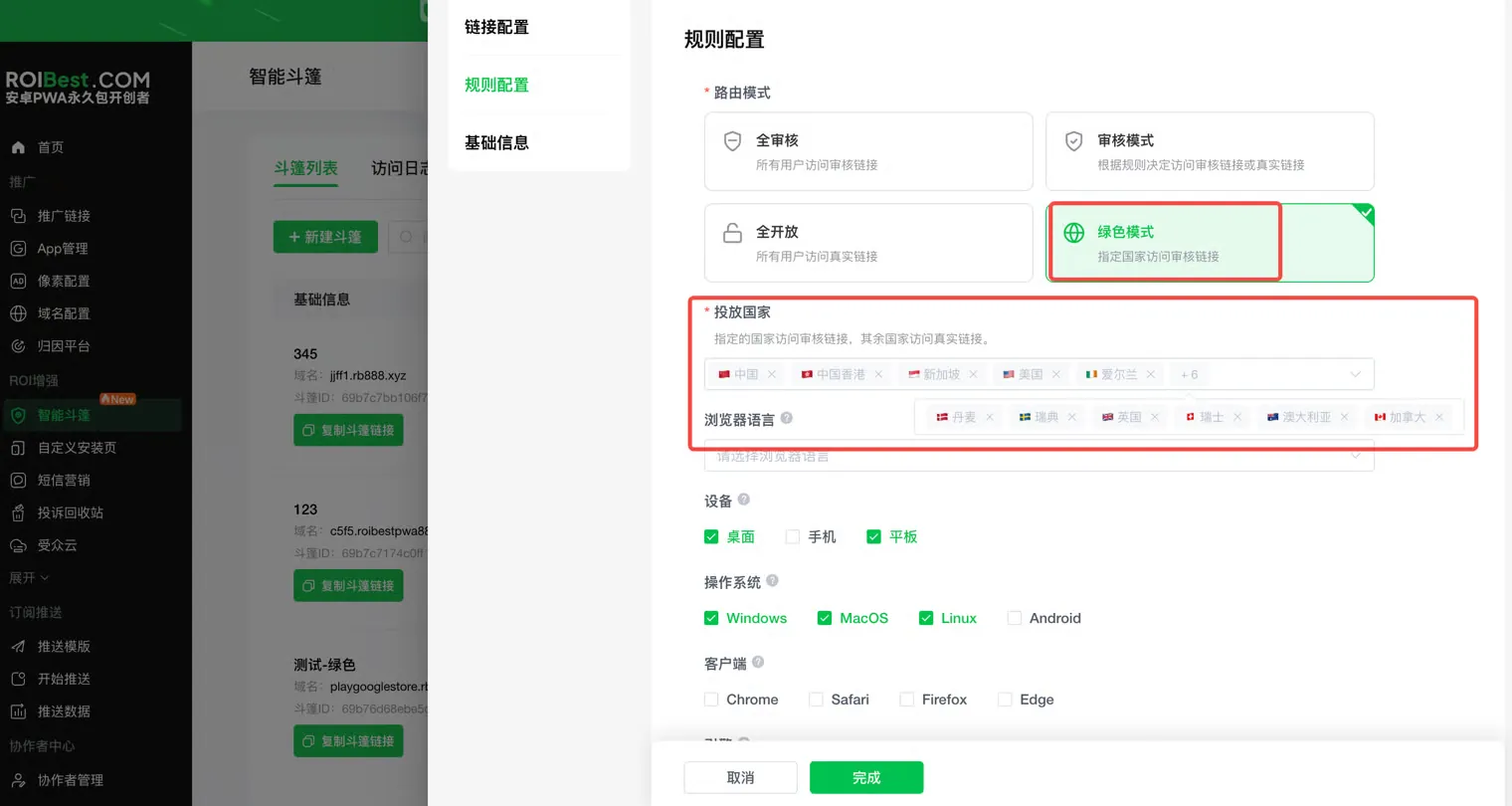
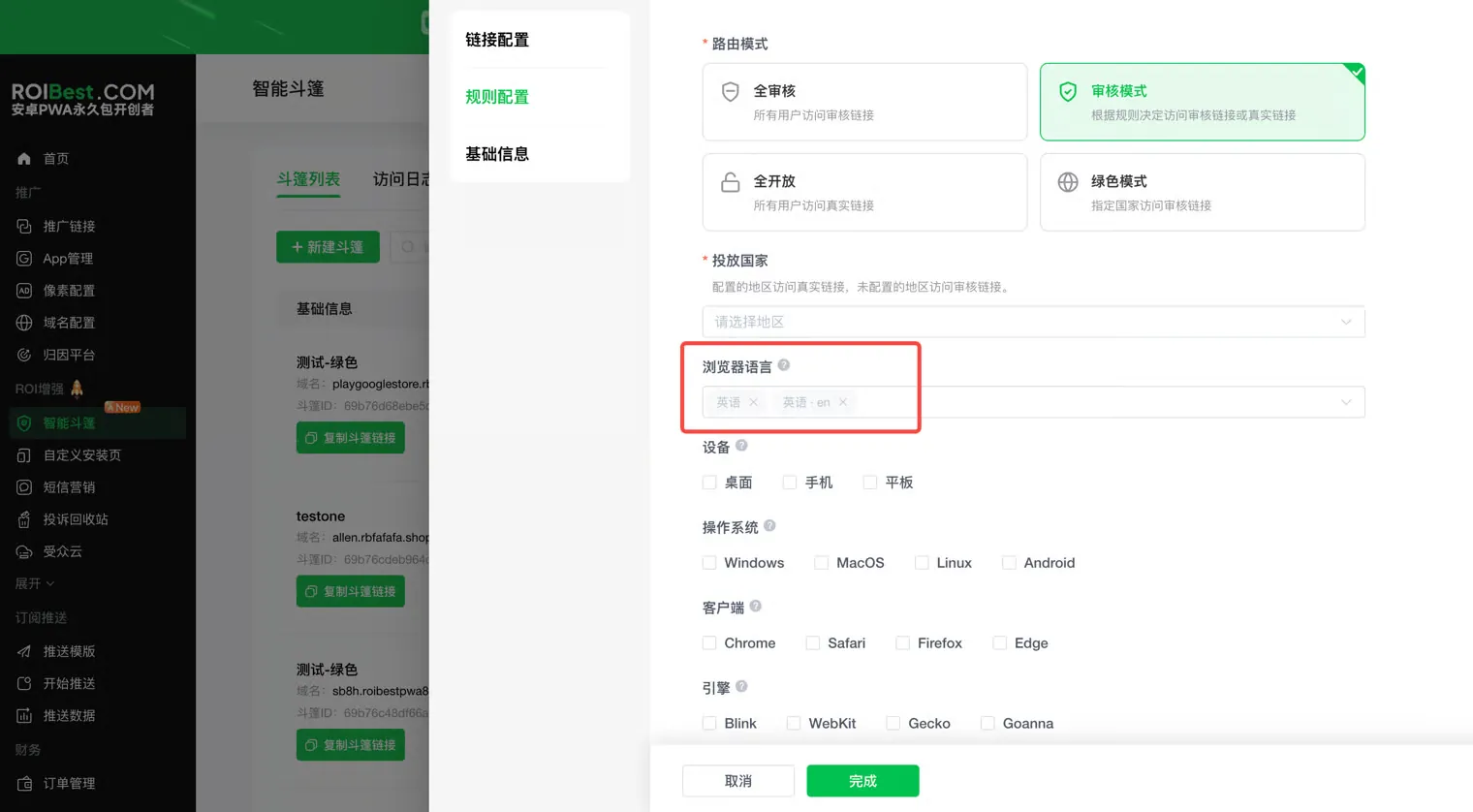
Additional settings for Review Mode and Green Mode (not applicable to Full Review, Full Open, or Real-time Behavior Detection):
Browser Language: Traffic matching the selected browser language will see the review link; other languages will see the real link.
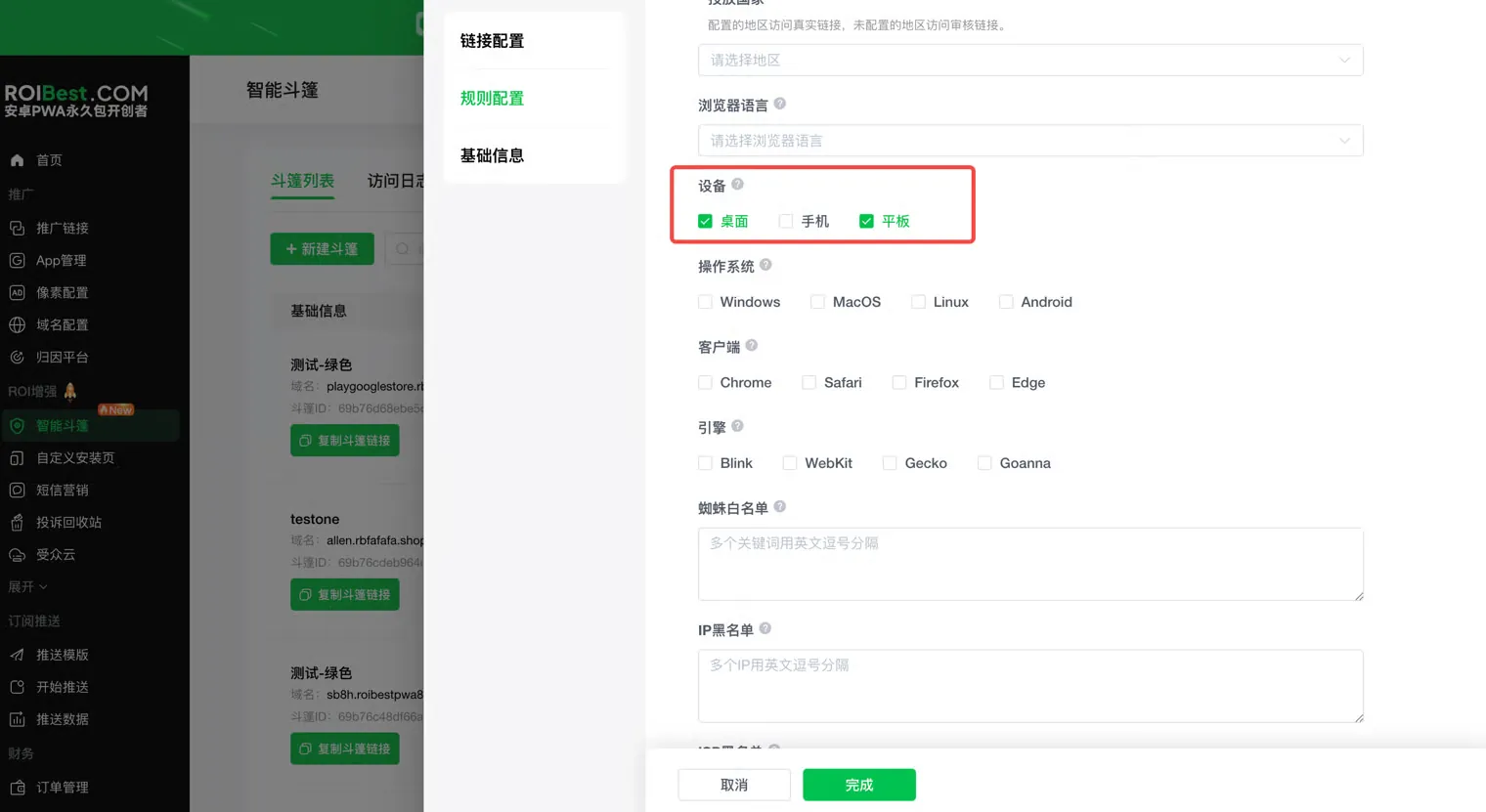
Device: The type of device used to access the link. Checked device types will see the review link; unchecked types will see the real link.
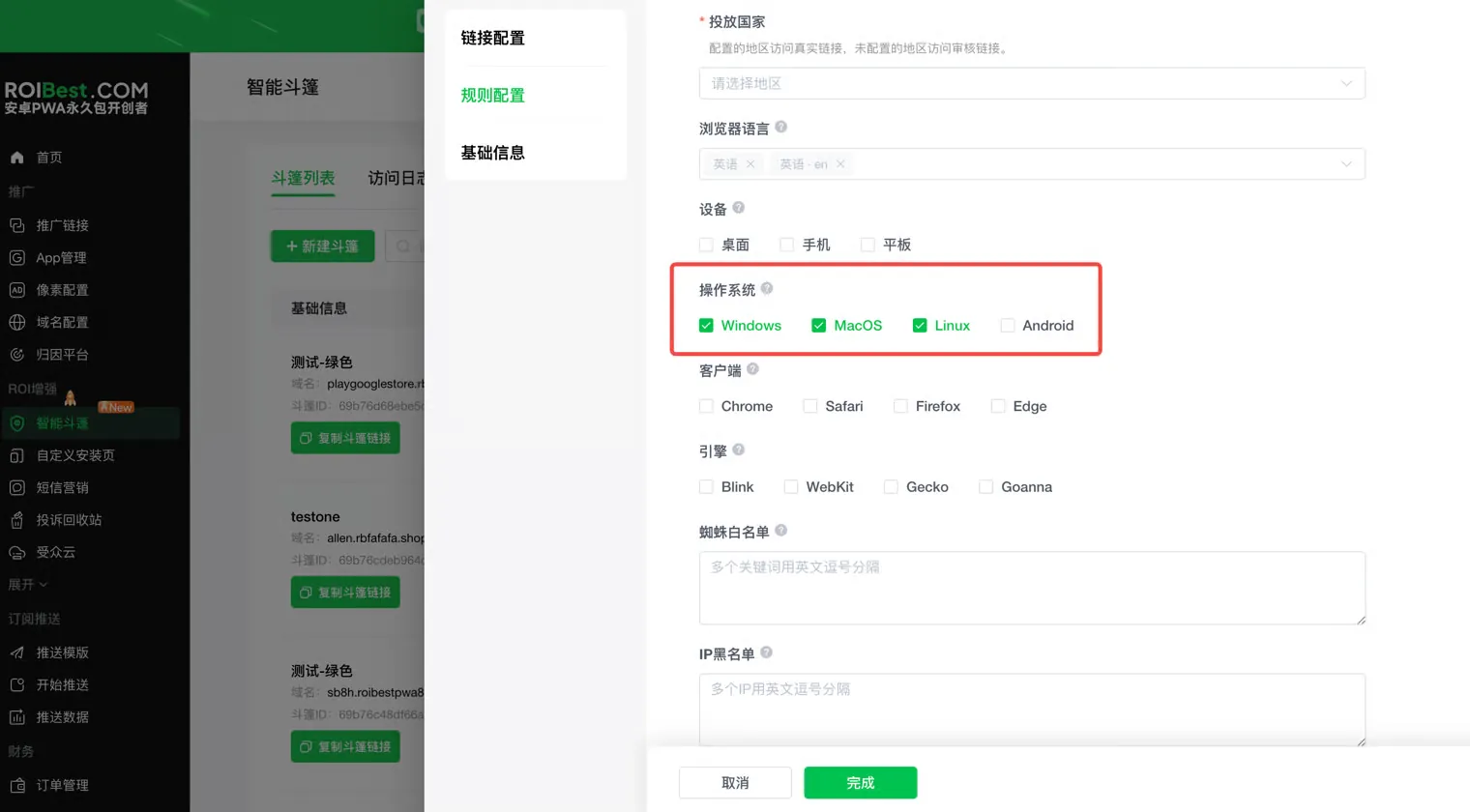
Operating System: Checked operating systems will see the review link; unchecked ones will see the real link.
Client: Checked clients will see the review link; unchecked clients will see the real link.
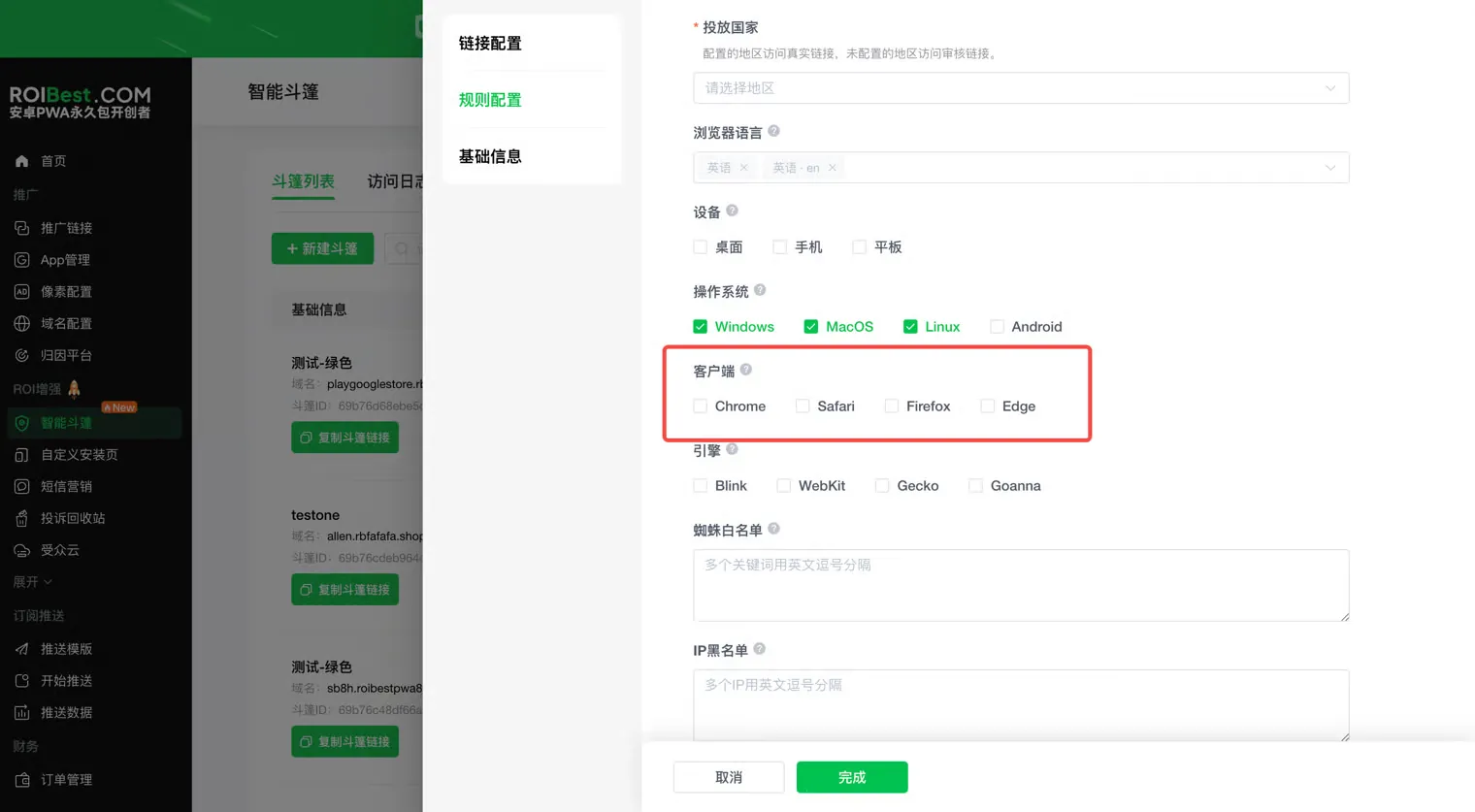
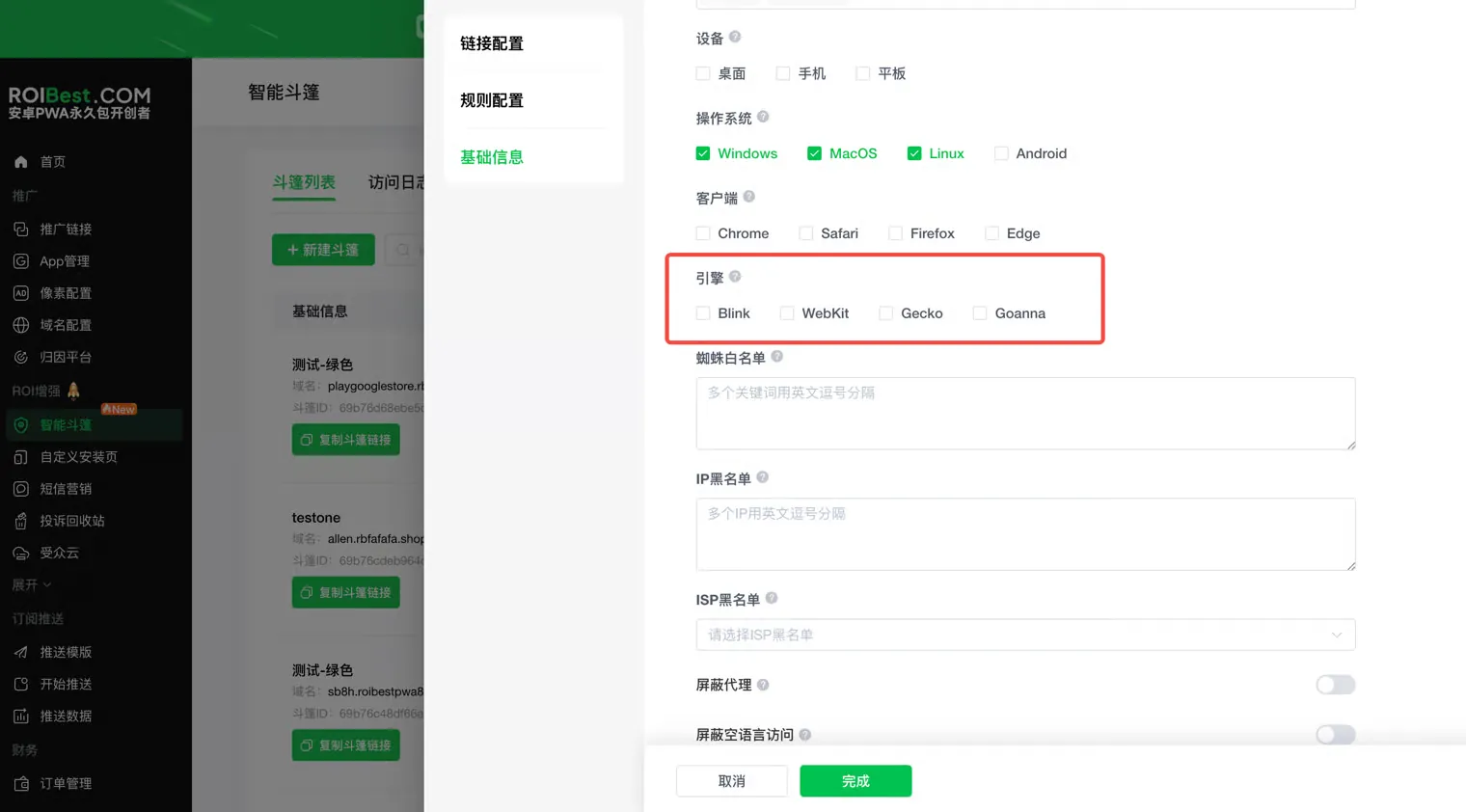
Engine: Refers to the underlying browser rendering engine. The cloak uses the visitor's browser engine to identify traffic characteristics. Checked engines will see the review link; unchecked engines will see the real link.
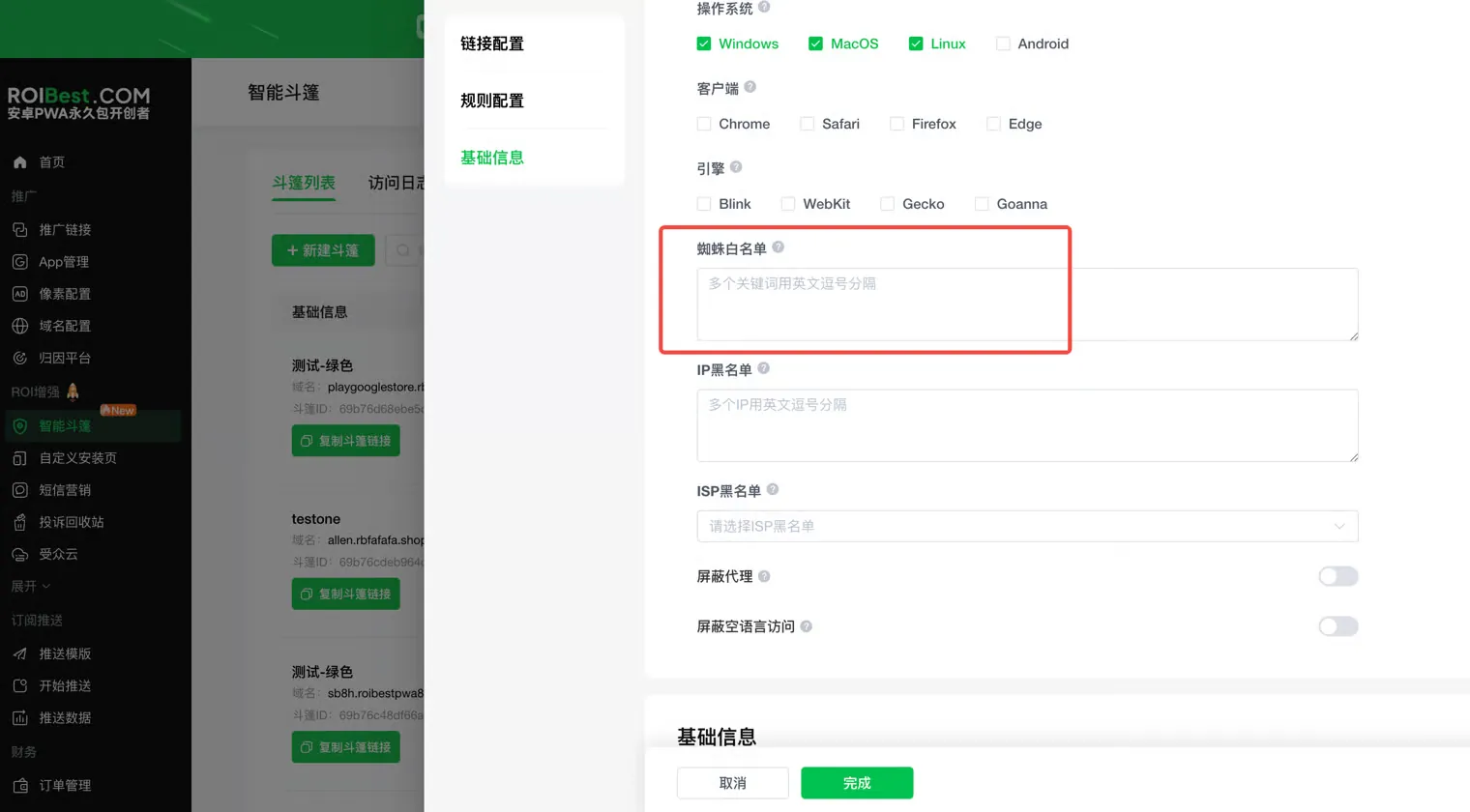
Spider Whitelist: Manually configure spider identifiers. Whitelisted spiders will see the real link.
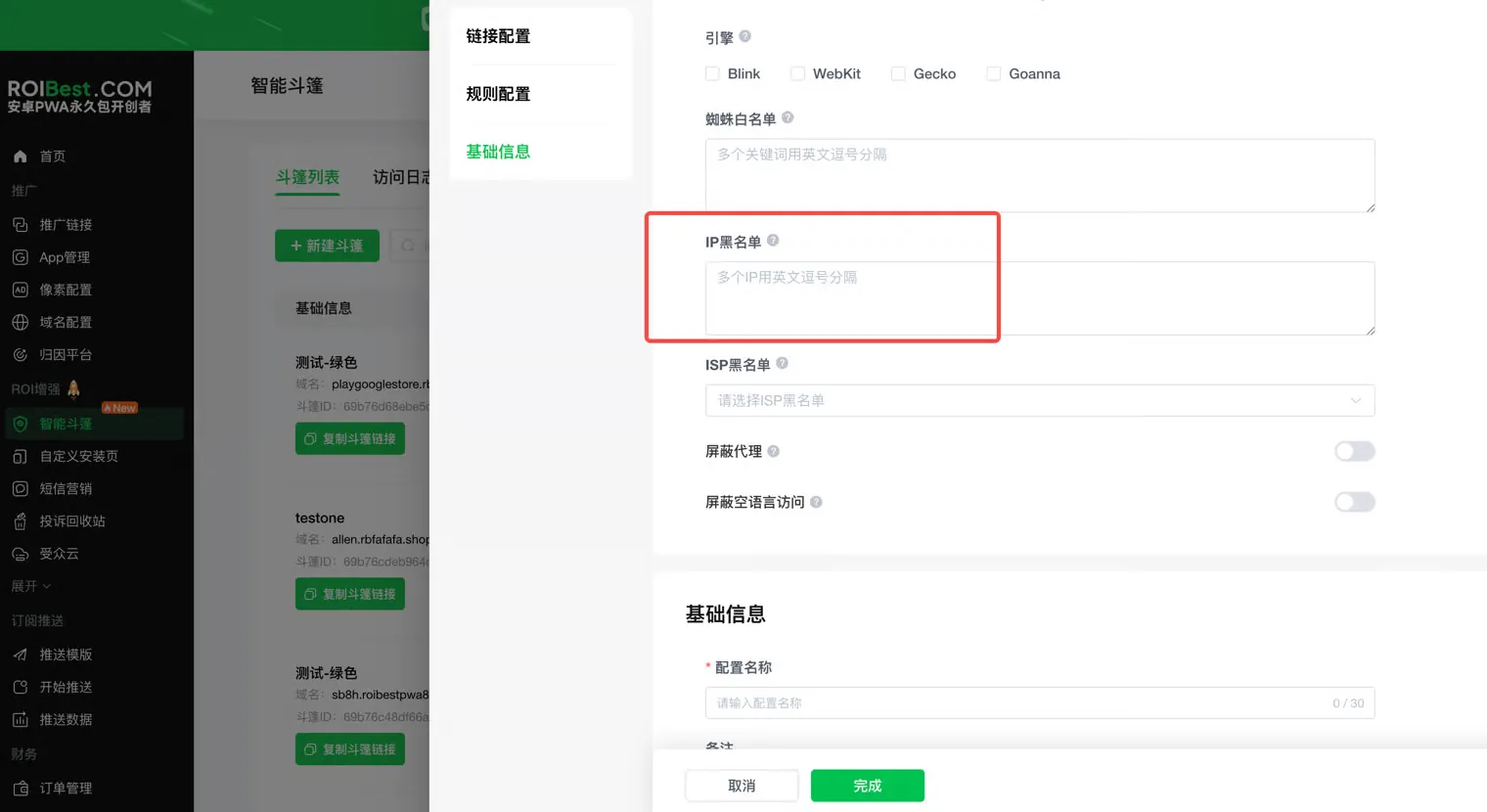
IP Blacklist: Manually configure blacklisted IPs. Blacklisted IPs will see the review link.
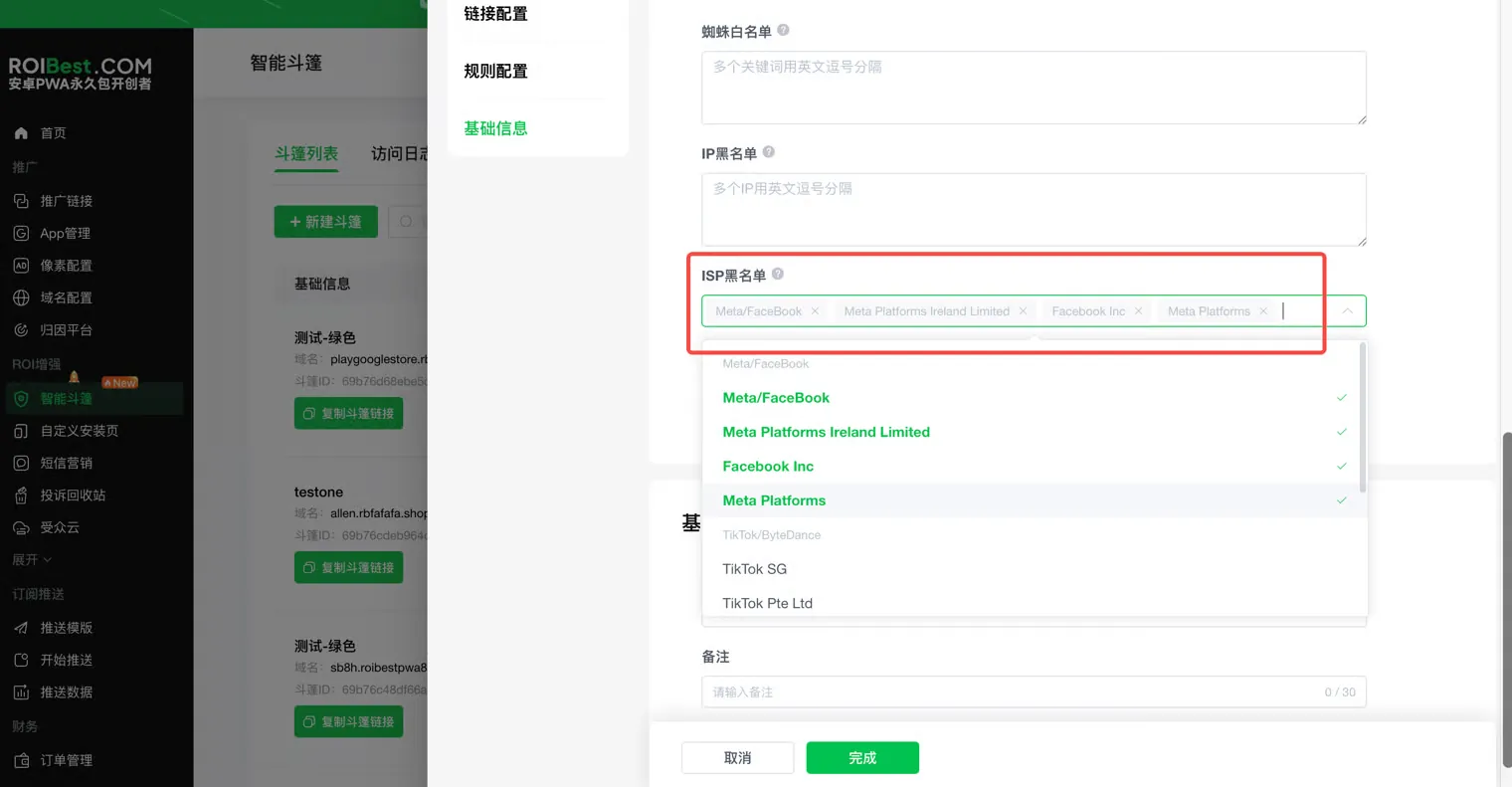
- ISP Blacklist: Blacklisted ISPs will see the review link. You can select ISPs based on the ad platform you are using.
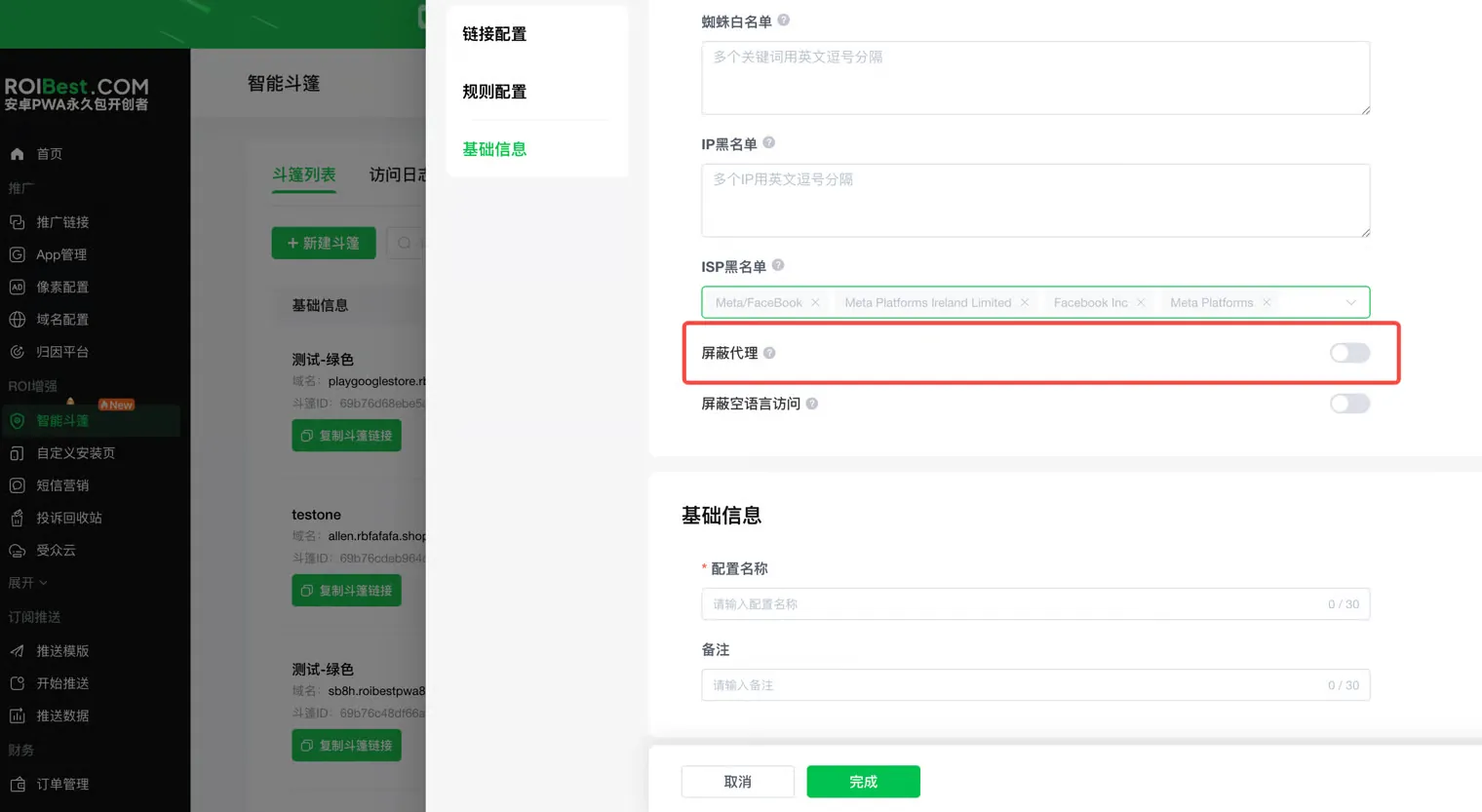
- Block Proxy: When enabled, traffic using VPN/proxy will see the review link.
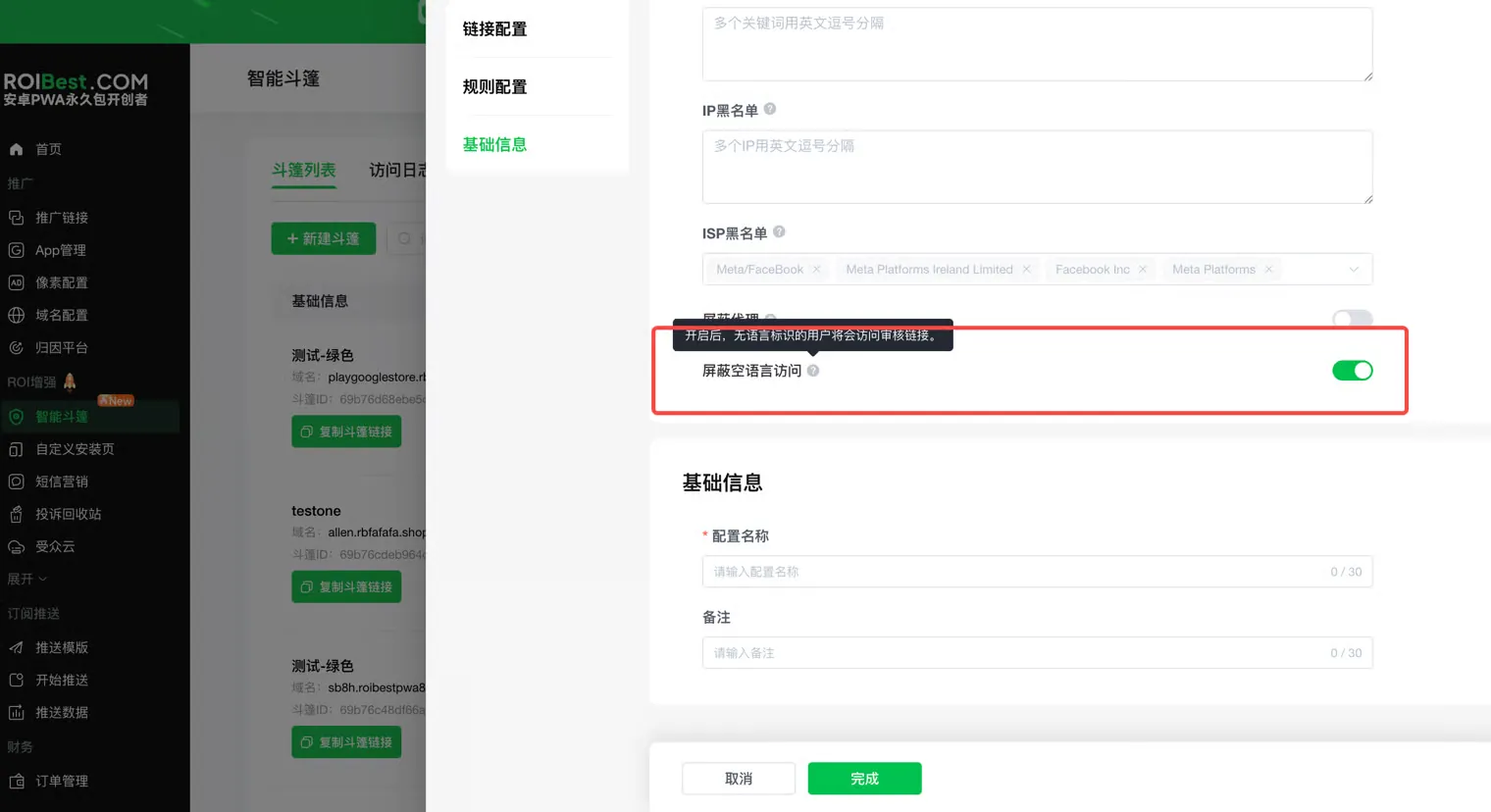
- Block Empty Language: When enabled, traffic with no language identifier will see the review link.
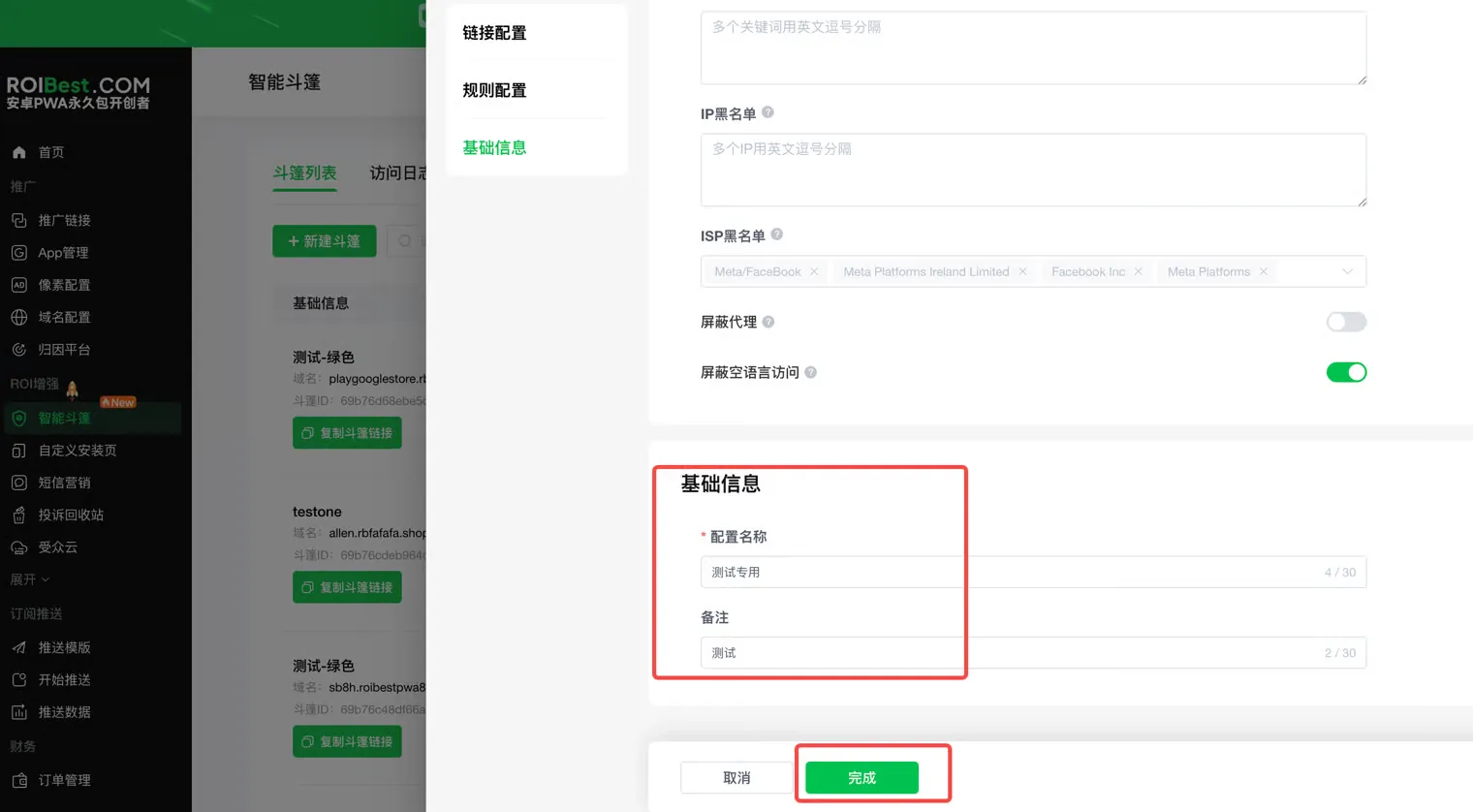
Step 3 - Basic Information
Configure the cloak link name and notes to complete the cloak link setup.
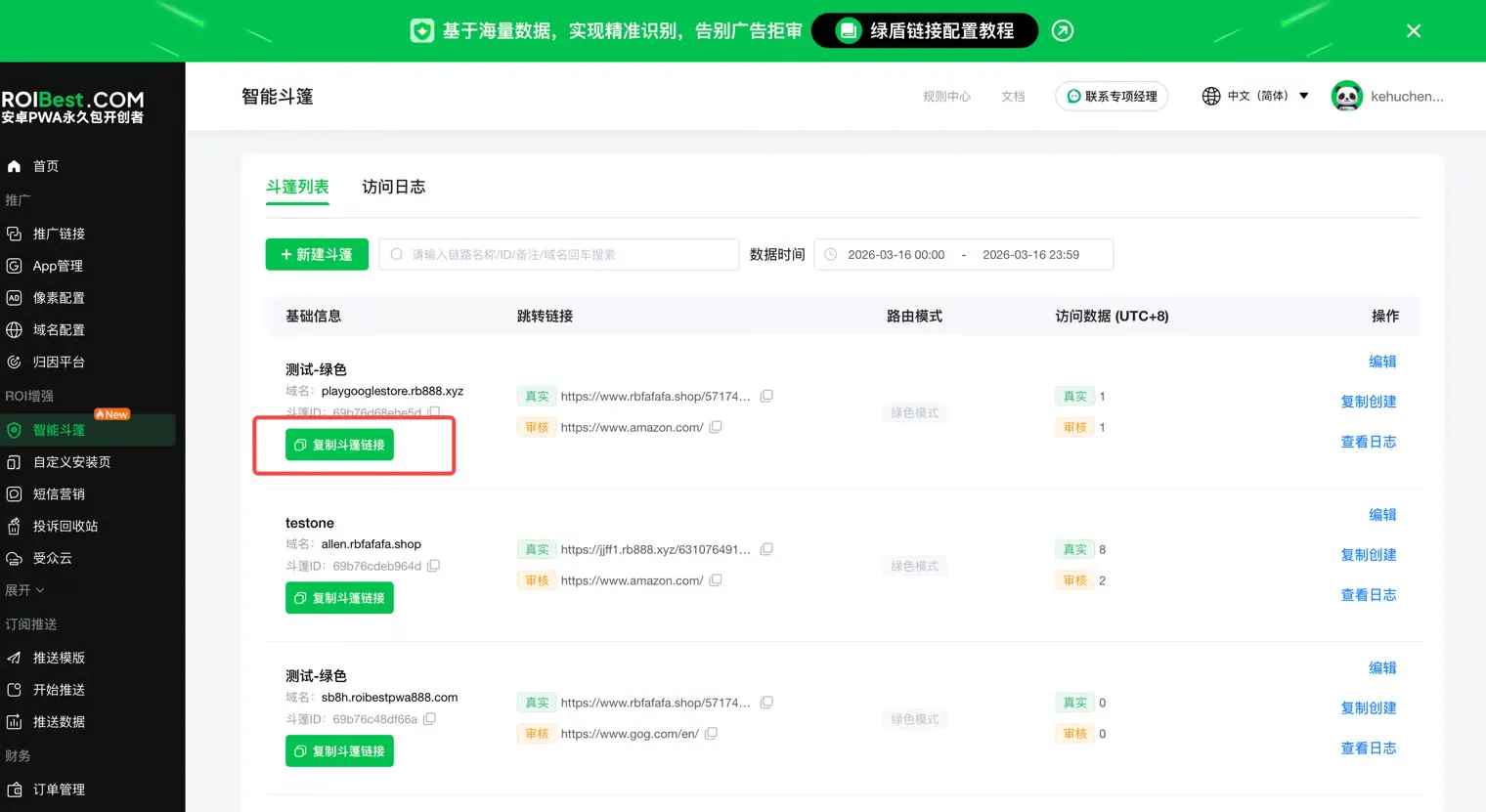
Step 4 - Copy the Cloak Link
Click to copy the cloak link. You can now test and launch your campaign — this is the final link to use in your ads.
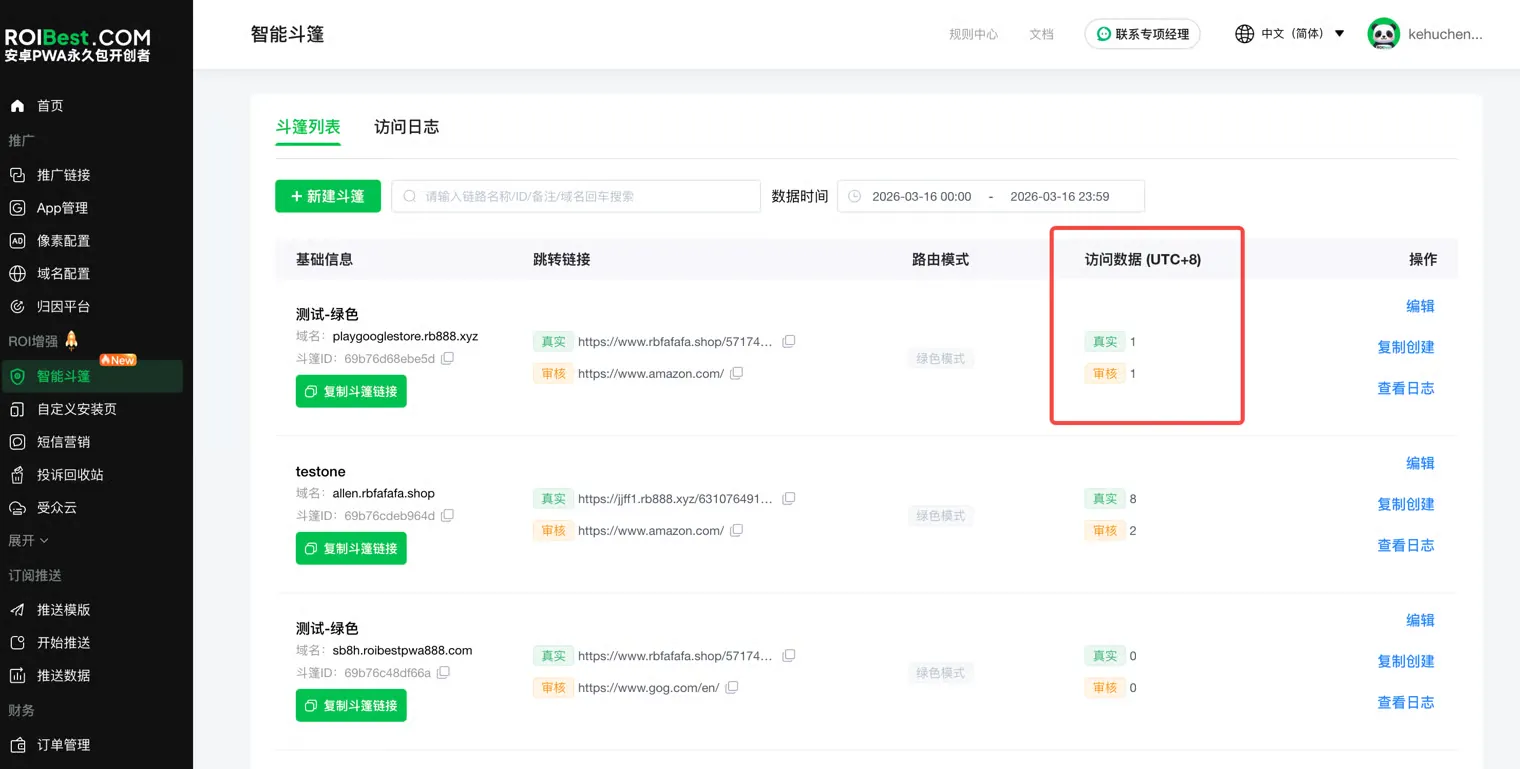
Step 5 - View Data
Access Data (UTC+8) displays the visit counts for both the real link and the review link.
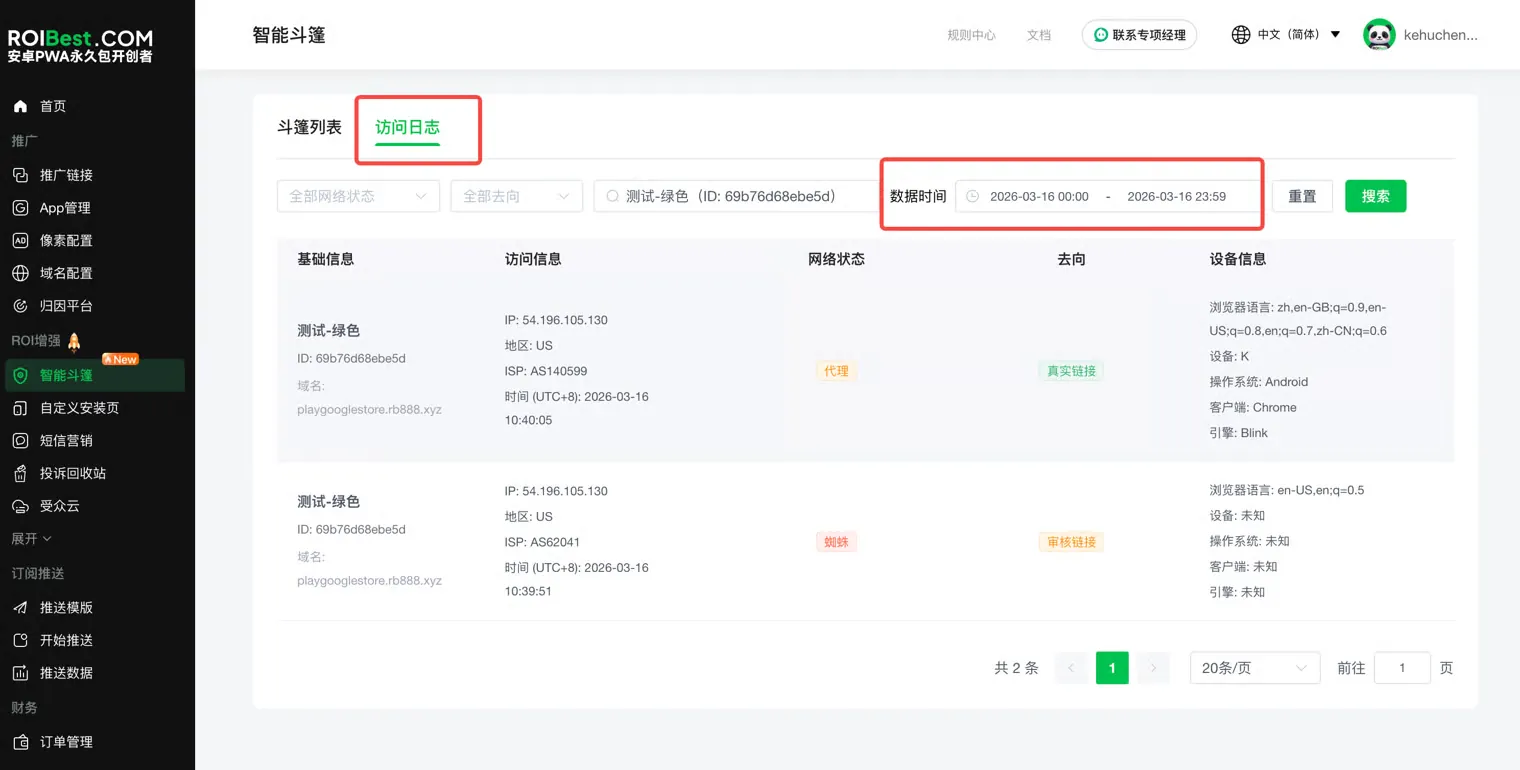
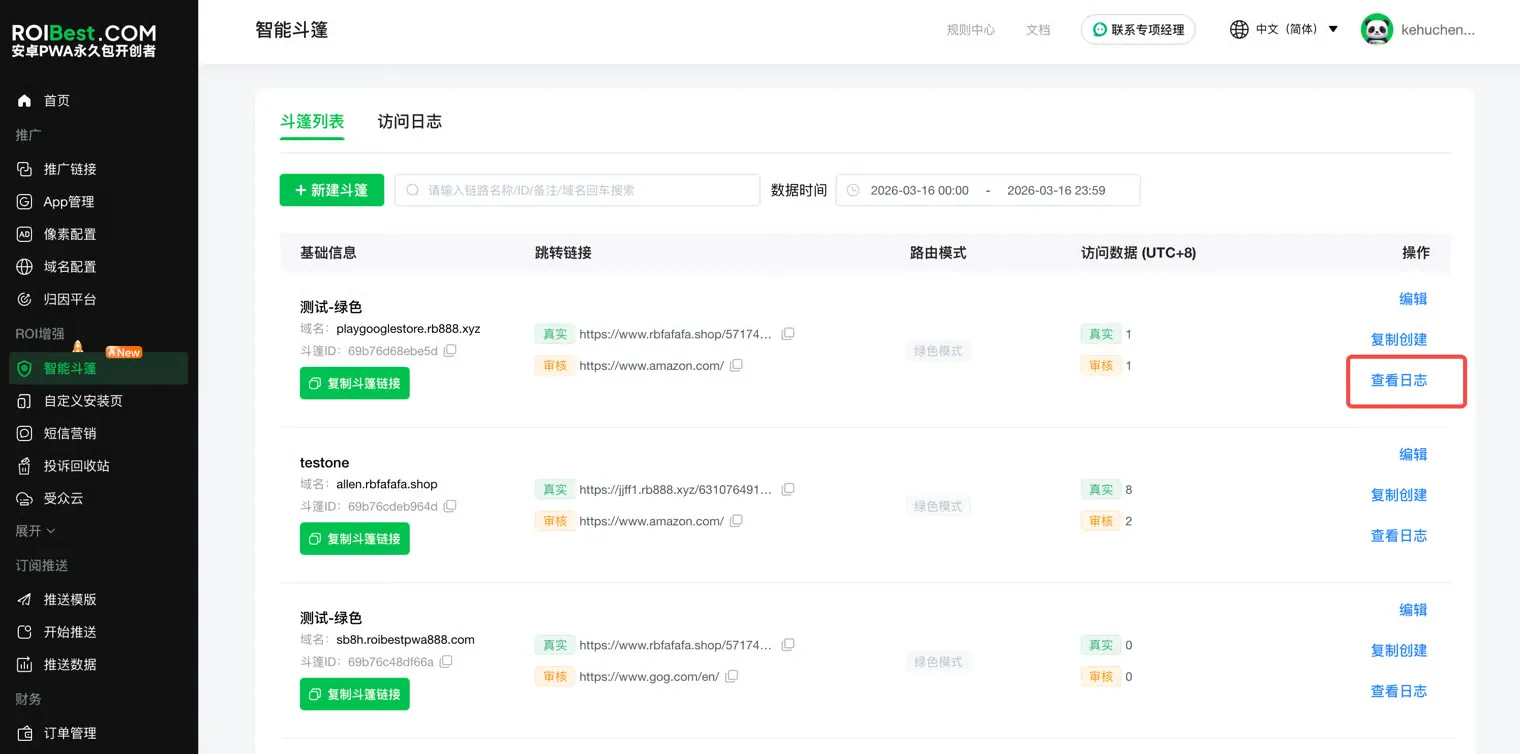
Step 6 - View Logs
Click View Logs to inspect detailed access logs for the cloak link.
Select the Date Range for the logs to retrieve traffic details including basic info, access info, network status, routing destination, and device information.