
Backup Link
Comprehensive protection to keep your ad delivery links running smoothly, preventing traffic loss caused by domain bans, DNS resolution failures, domain expiration, and more.
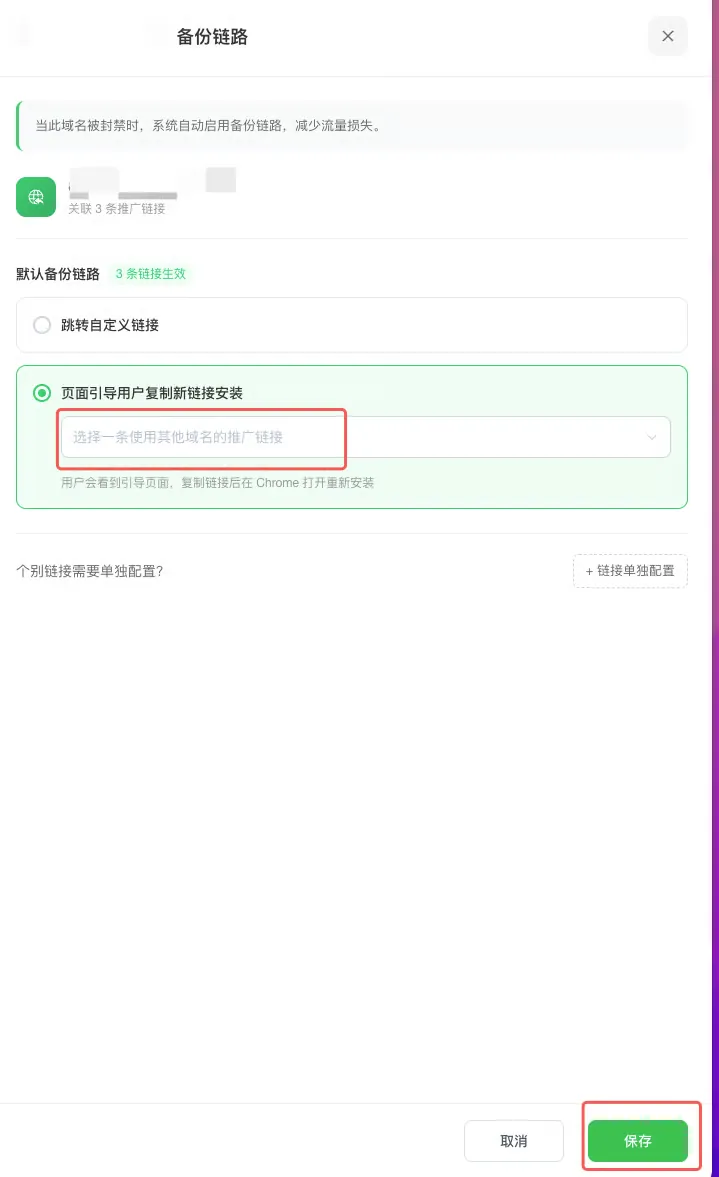
Step 1 - Find the Domain You Want to Configure in the Domain List, Click the "Configure" Button, and a Configuration Panel Will Appear on the Right
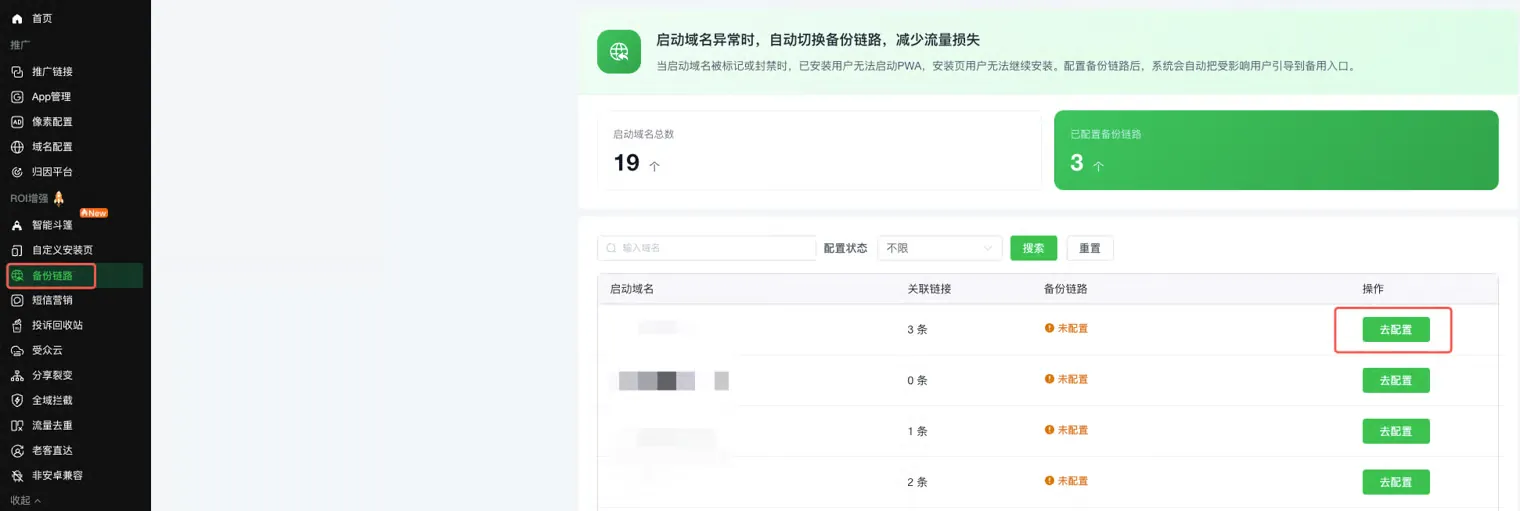
Two backup link strategies are currently supported: redirect to a custom URL, and guide the user to copy a new link for installation.
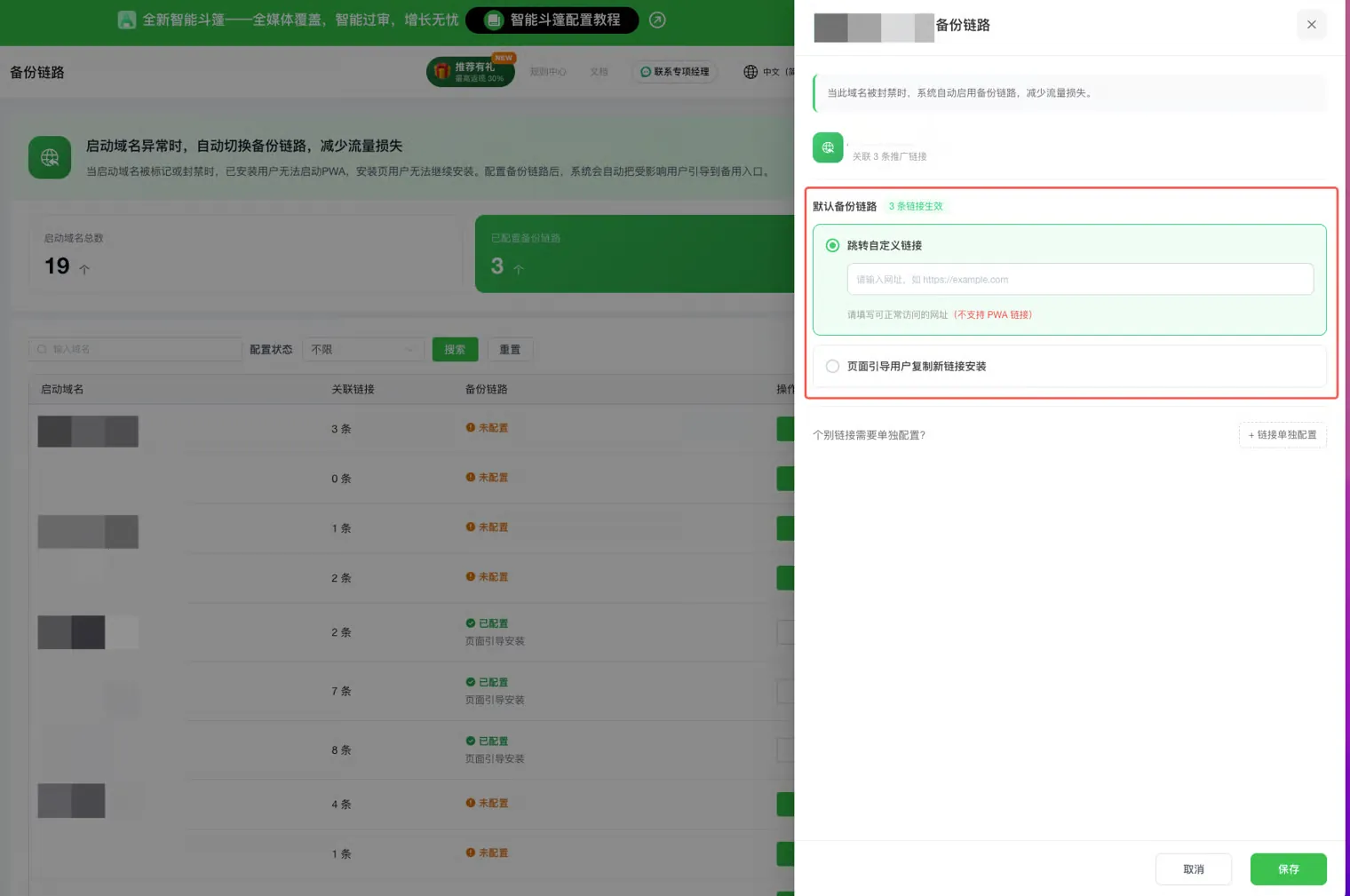
Strategy 1: Redirect to a Custom URL
When this strategy is selected, users will be automatically redirected to the URL you specify if the domain is banned. Note: PWA links are not supported here!
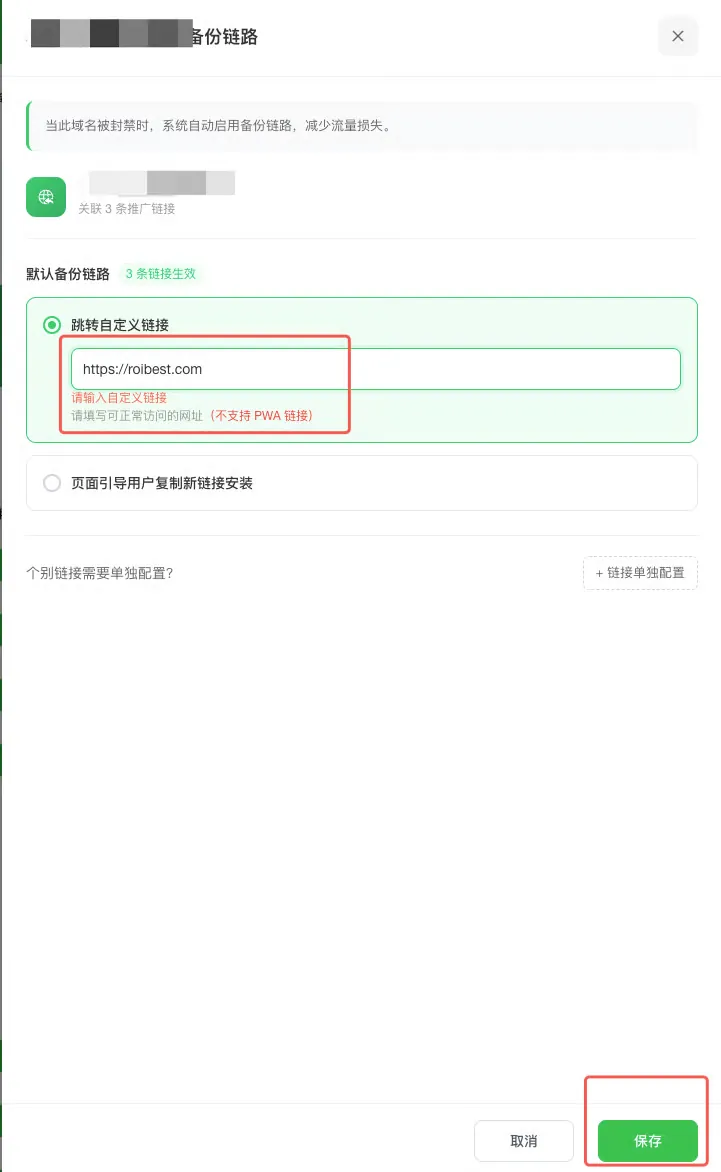
Steps:
- Select Redirect to a Custom URL in the configuration panel
- Enter a backup URL (e.g., https://roibest.com)
- Click Save to complete the configuration
Strategy 2: Guide the User to Copy a New Link for Installation
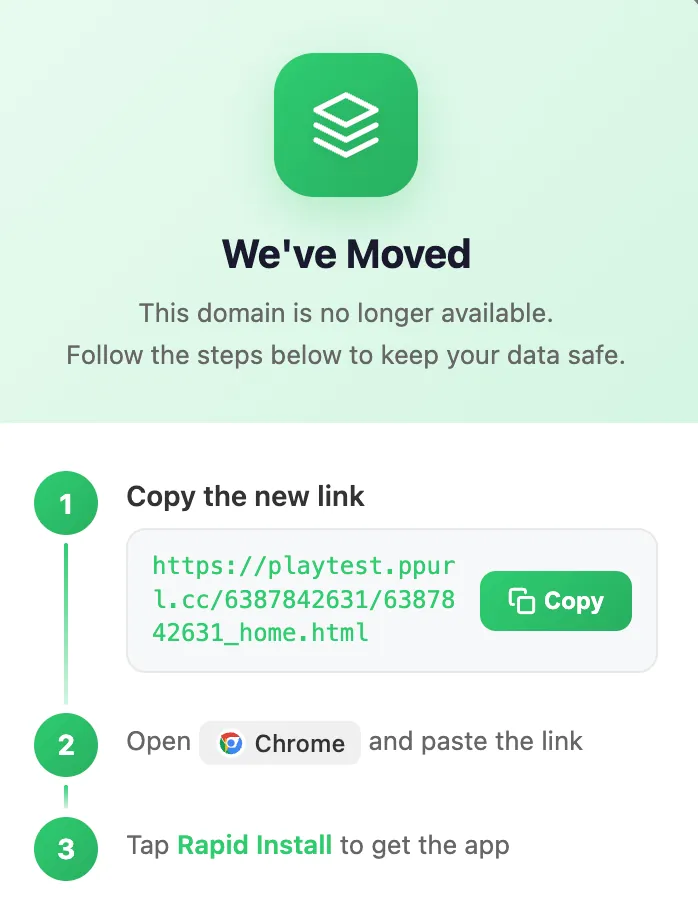
When the domain is banned, users will see a landing page containing a PWA promotion link on a different domain. They can copy the link and open it in Chrome to reinstall.
Steps:
- Select Guide the User to Copy a New Link for Installation in the configuration panel
- Choose a promotion link that uses a different domain from the dropdown list
- Click Save to complete the configuration
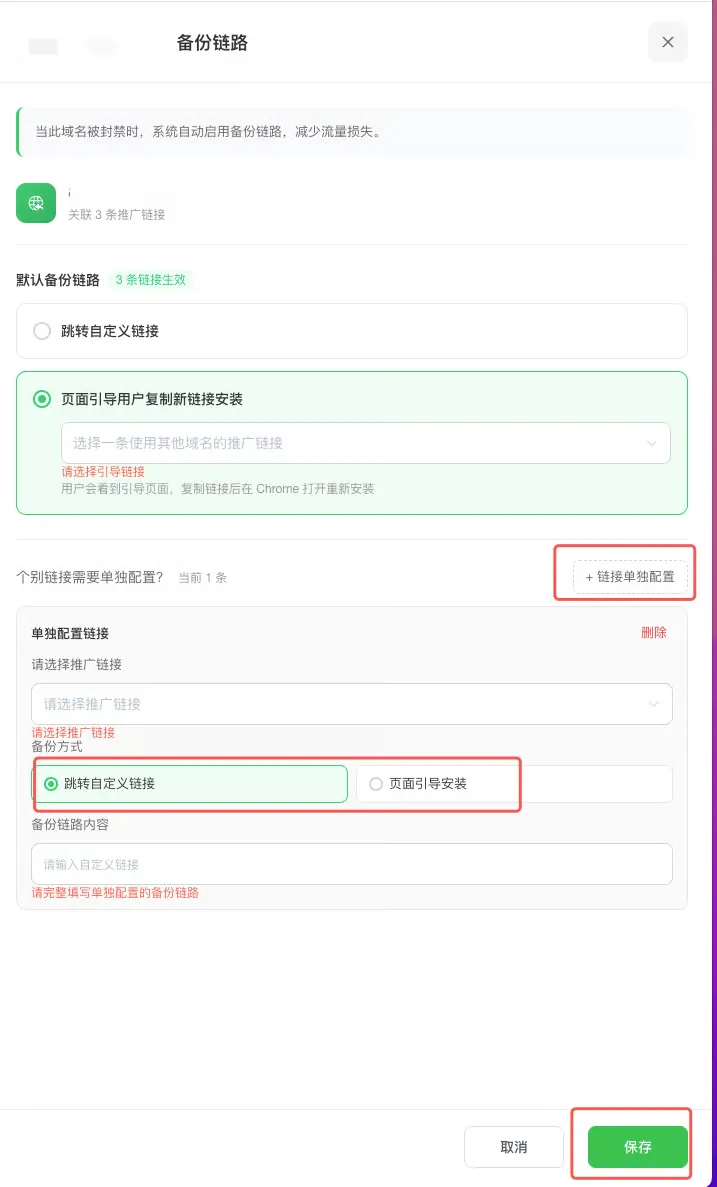
Setting Up Individual Link Overrides
If specific links need their own backup strategy, use the Per-Link Configuration feature.
Steps:
- Find the "Need to configure individual links separately?" section at the bottom of the configuration panel
- Click the + Per-Link Configuration button
- In the configuration card that appears, first select the promotion link you want to configure separately from the dropdown list
- Then choose a backup strategy for that link (Redirect to a Custom URL or Guide to Copy & Install)
- Repeat the steps above to add more individual configurations (up to 10)
- Click Save to complete all configurations