
Referral & Viral Sharing
Encourage existing users to share content with friends through referral campaigns, driving organic growth via word-of-mouth virality.
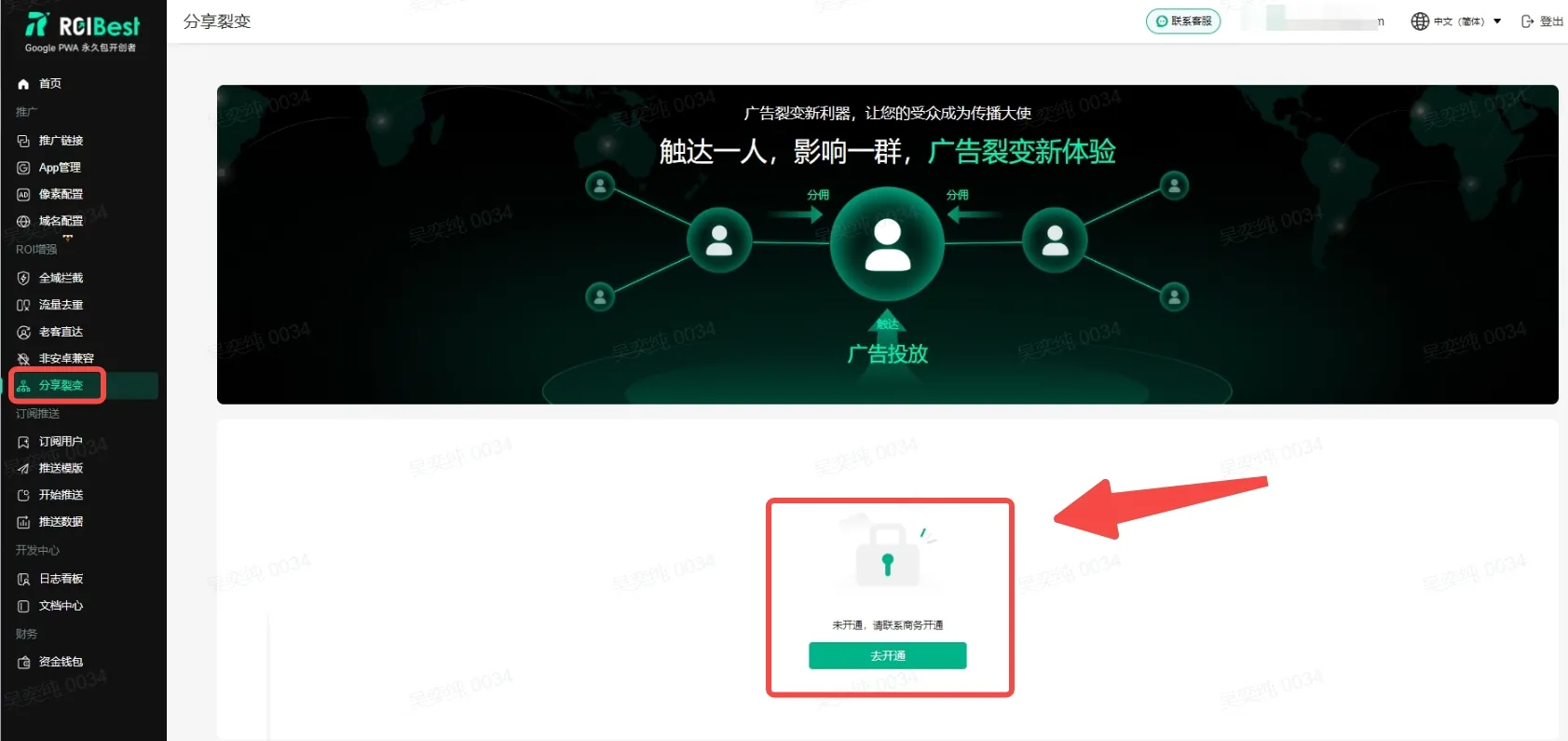
Step 1 - Enable the Feature
- This feature is currently exclusive to enterprise clients at no additional cost. To enable it, please contact your Customer Success Manager.
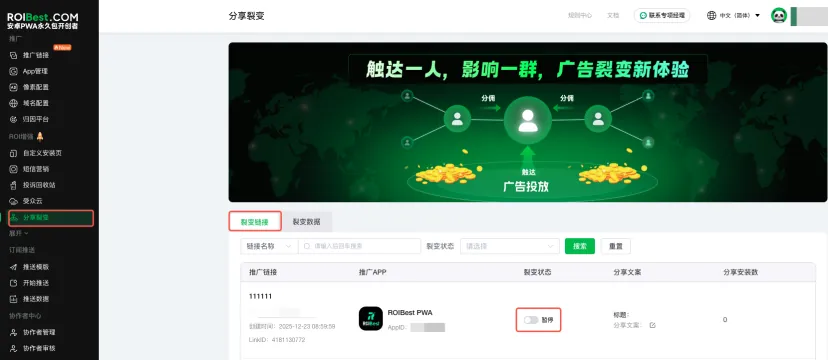
Step 2 - Enable / Pause Referral Status
- Navigate to Referral & Viral Sharing from the sidebar. Under Referral Links, use filters such as Link Name or Referral Status to locate the link you want to enable or pause.
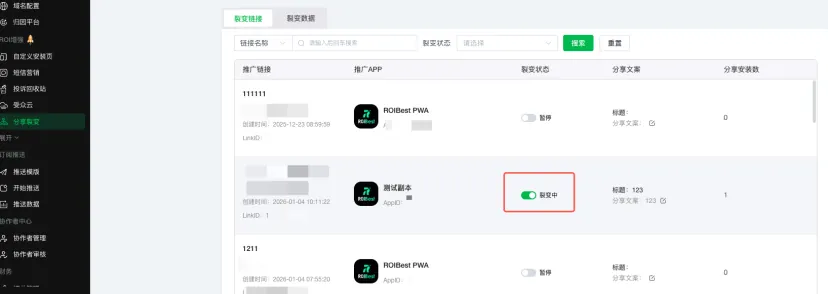
- To activate the feature, toggle the referral status to Active.
Step 3 - Configure Share Message
- Click the edit button ① to open the share message settings page. Fill in the Share Title and Share Copy as needed, then click Save.
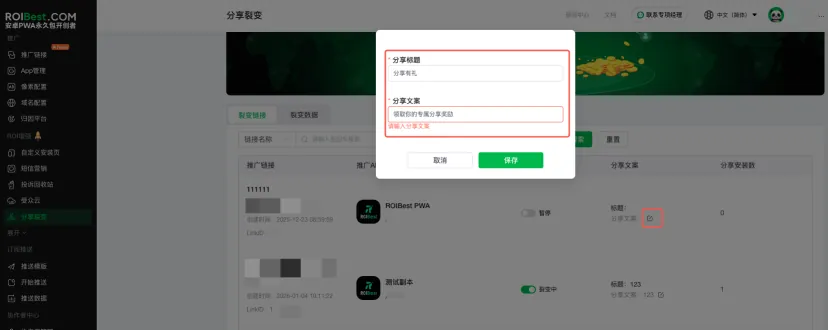
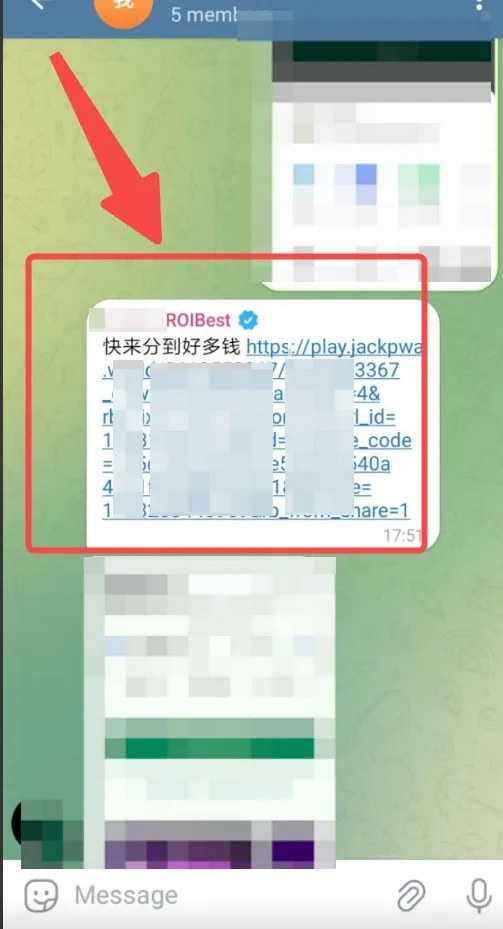
Share copy preview:
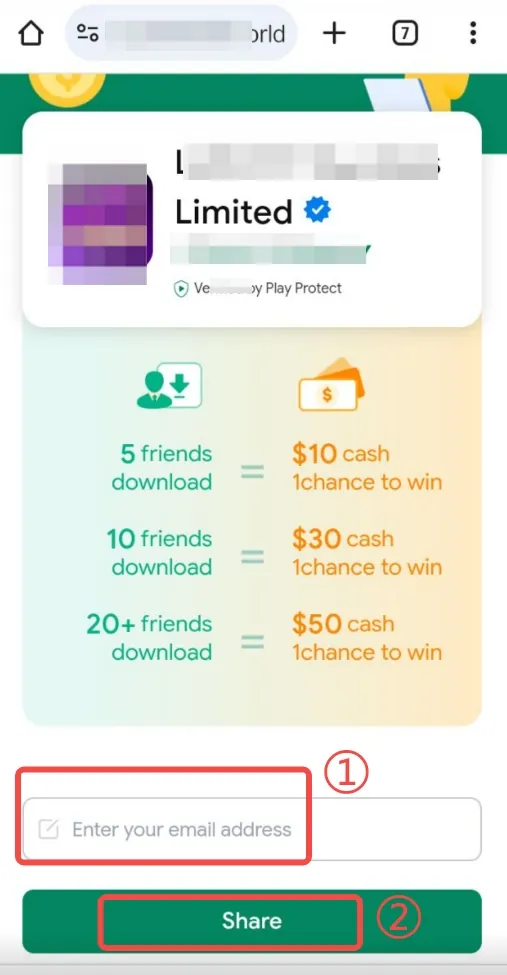
Share interface preview:
Users can submit their email via ① and share content via ② to trigger viral distribution.
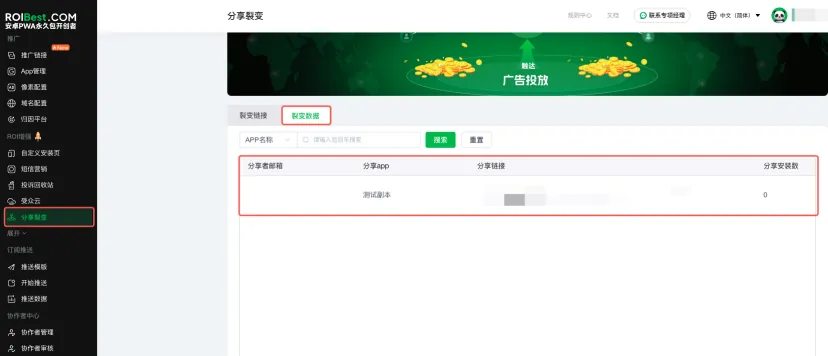
Step 4 - View Sharing Data
- Click Referral Data and search by App Name or App ID to view the corresponding sharing metrics.