
Google FAQ
How to Configure the Google Channel + GA4 Data Stream
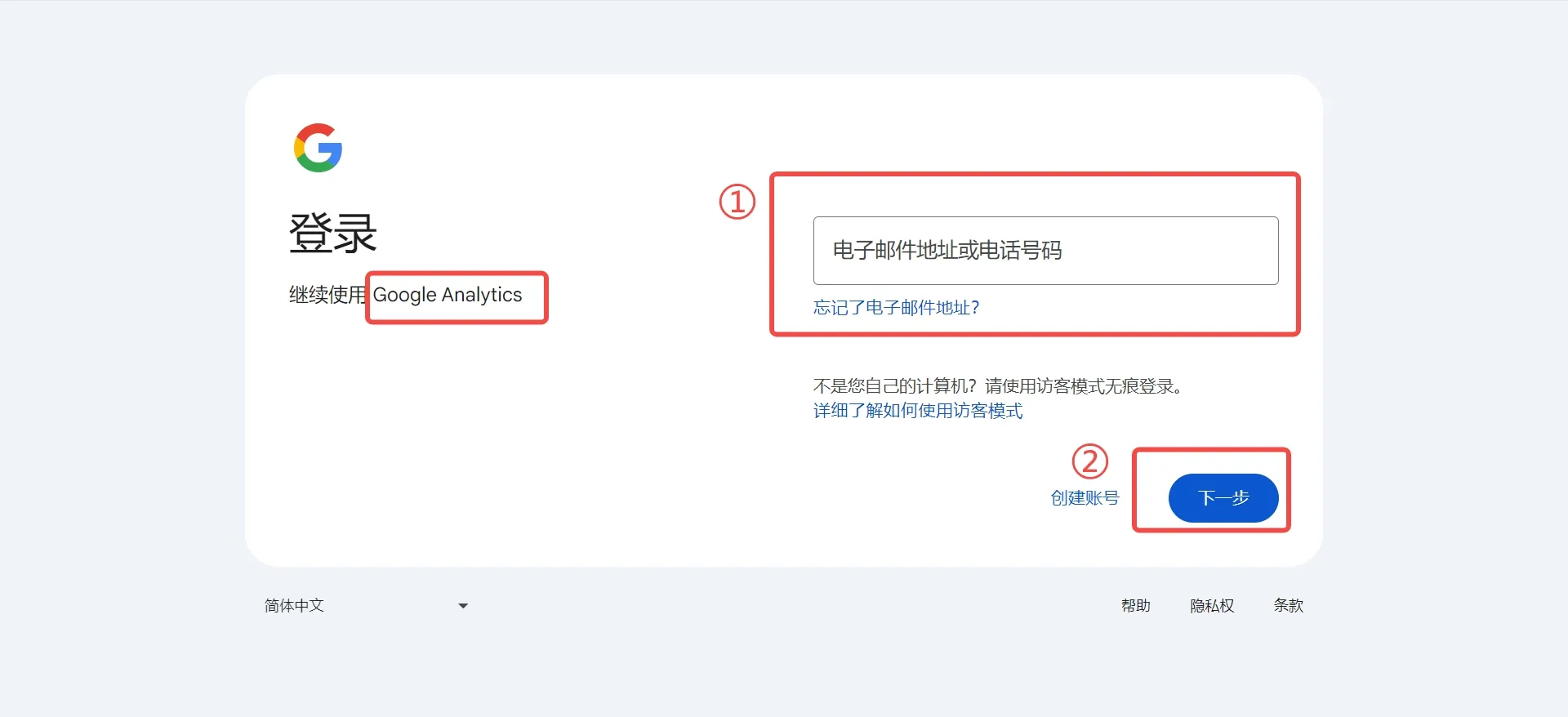
Step 1 - Log in to Google Analytics
- Google Analytics login URL: https://analytics.google.com. Make sure to use the same account as your Google Ads business account;
Step 2 - Create a GA4 Data Stream
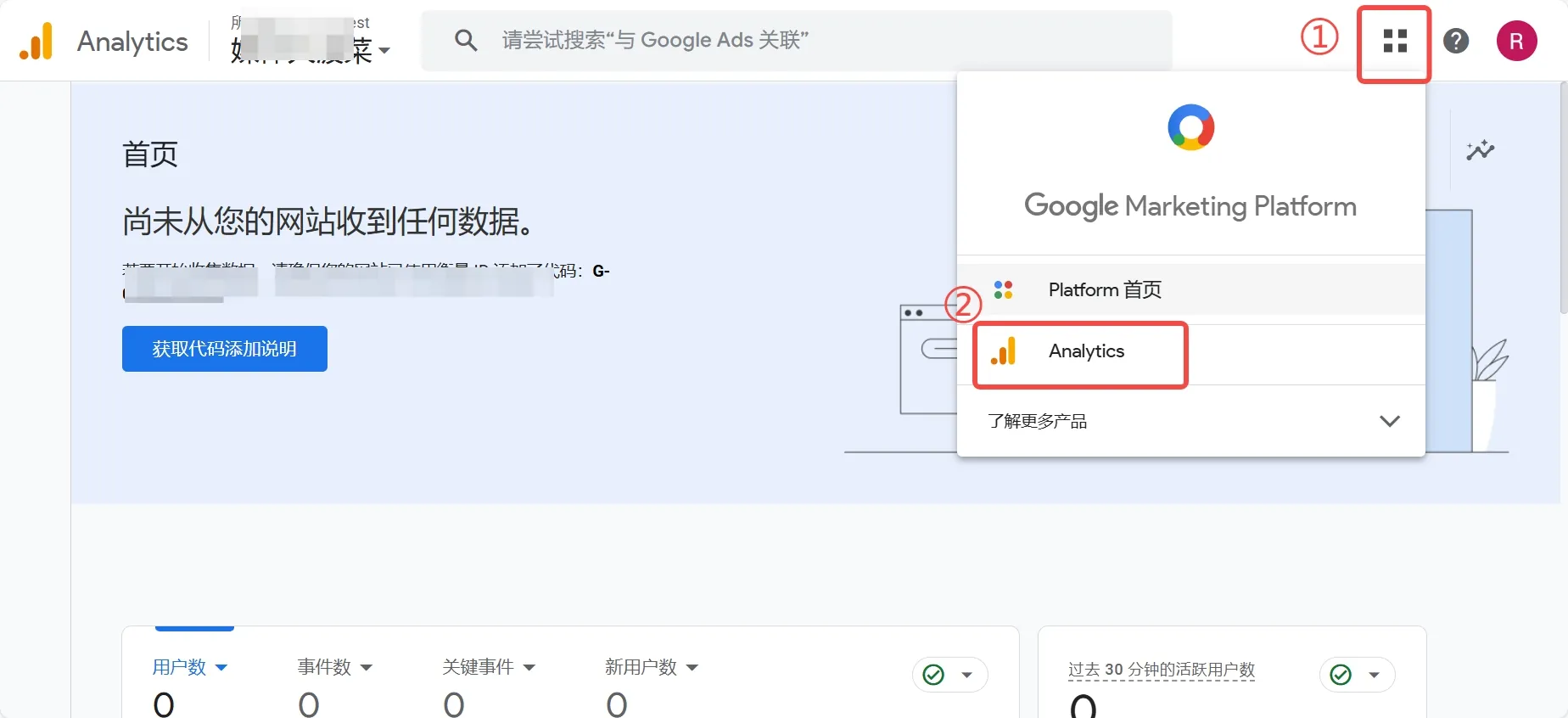
- In the top-right corner, select and enter the [Analytics] page;
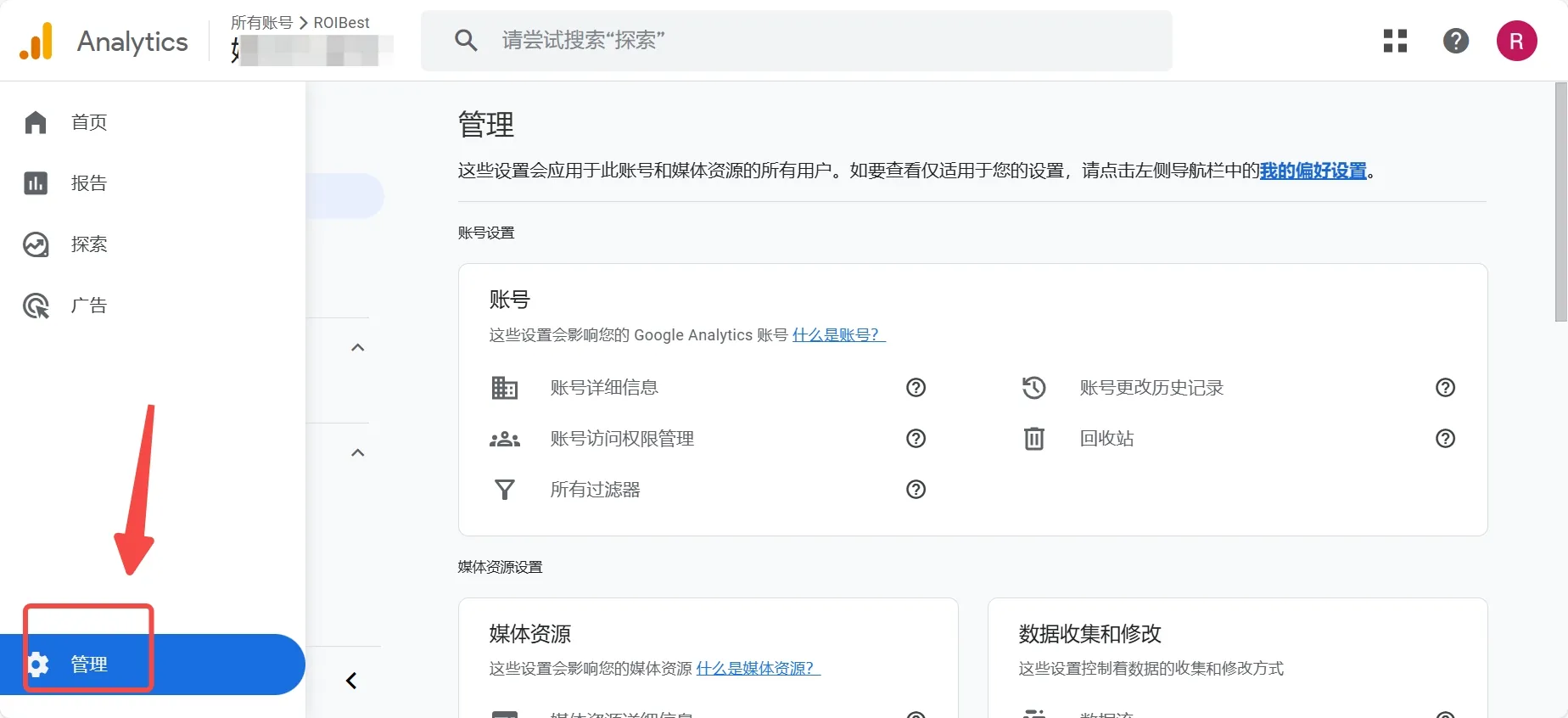
- Click to enter the [Admin] page;
- Find and click [Data Streams];
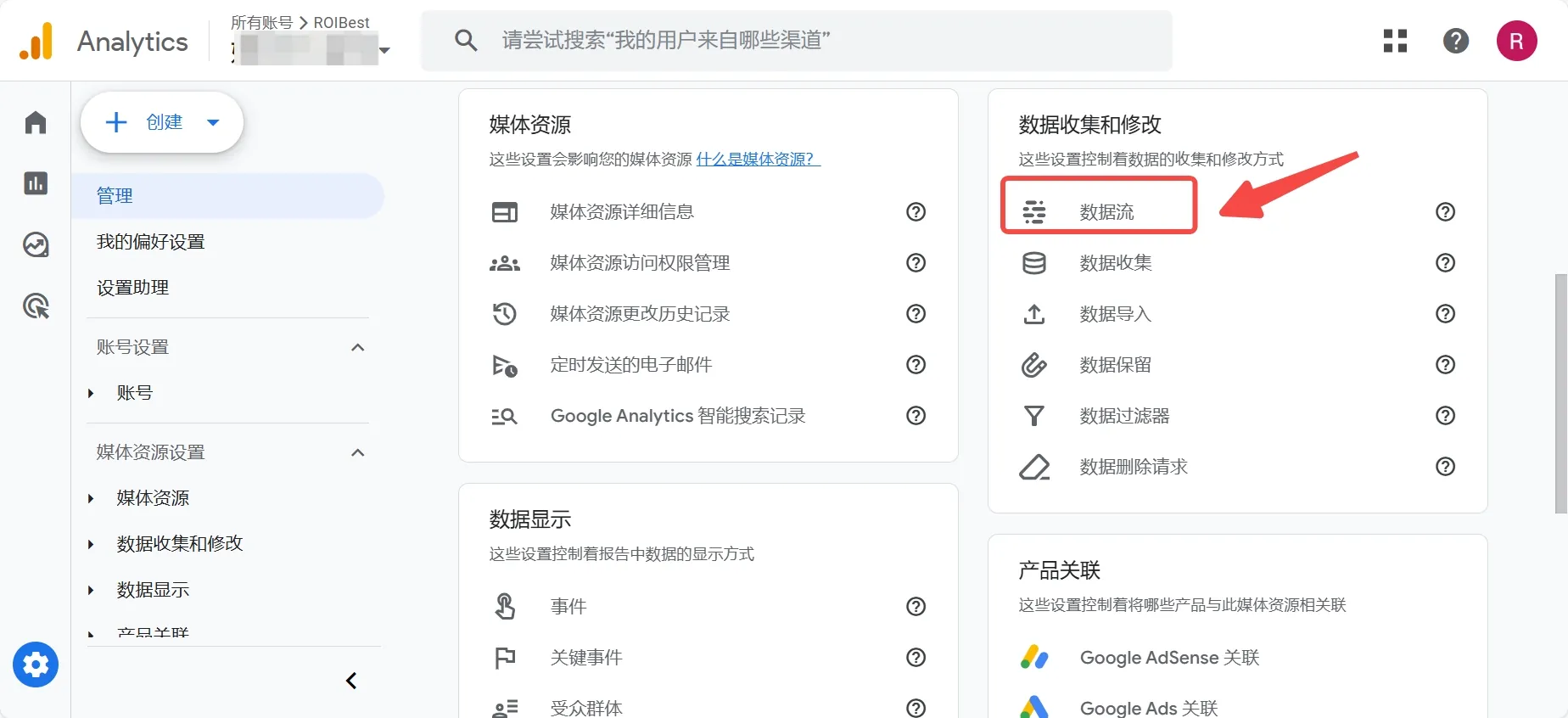
- Select [Add Stream], then choose [Web];
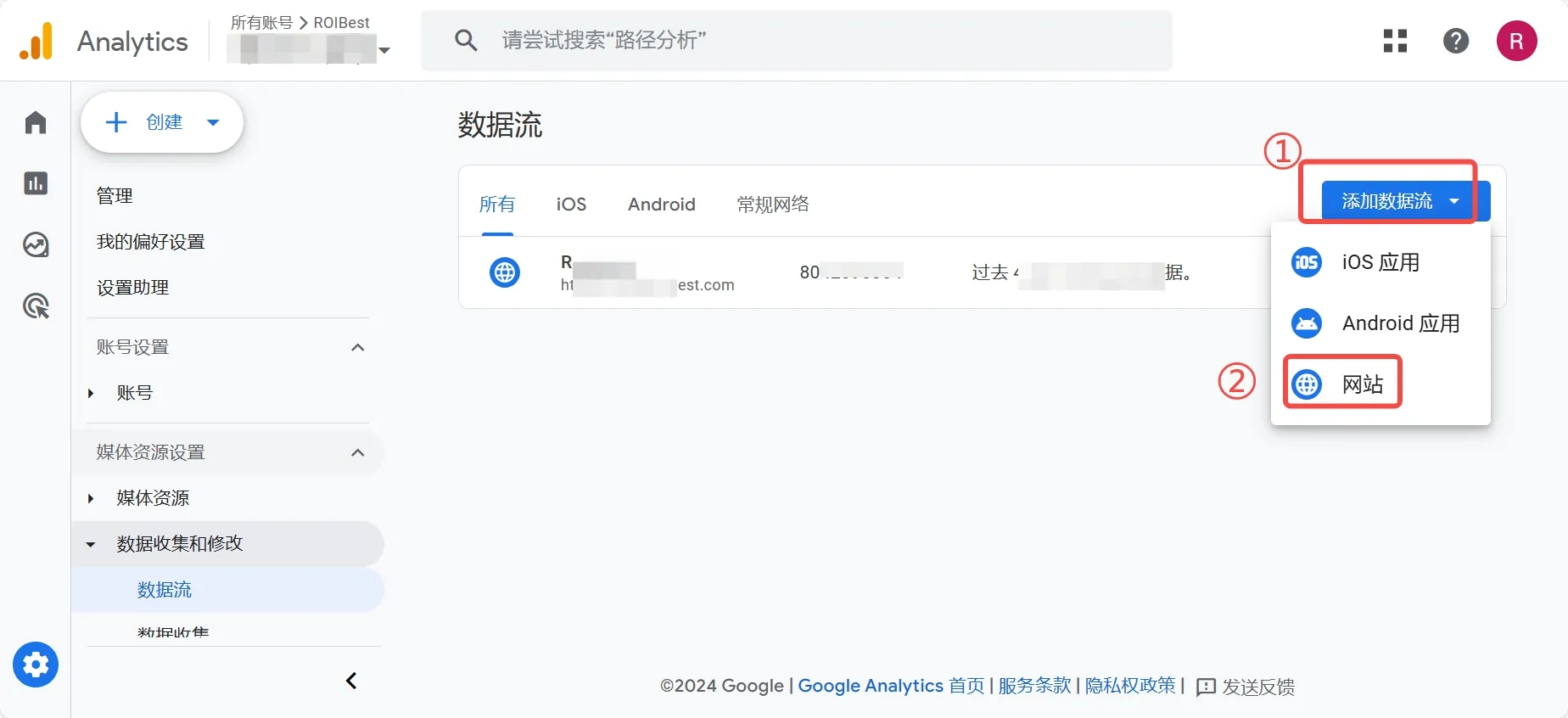
- Enter the [Website URL] in field ①, and the [Stream Name] in field ② (custom name for easy management). Once configured, click [Create and Continue];
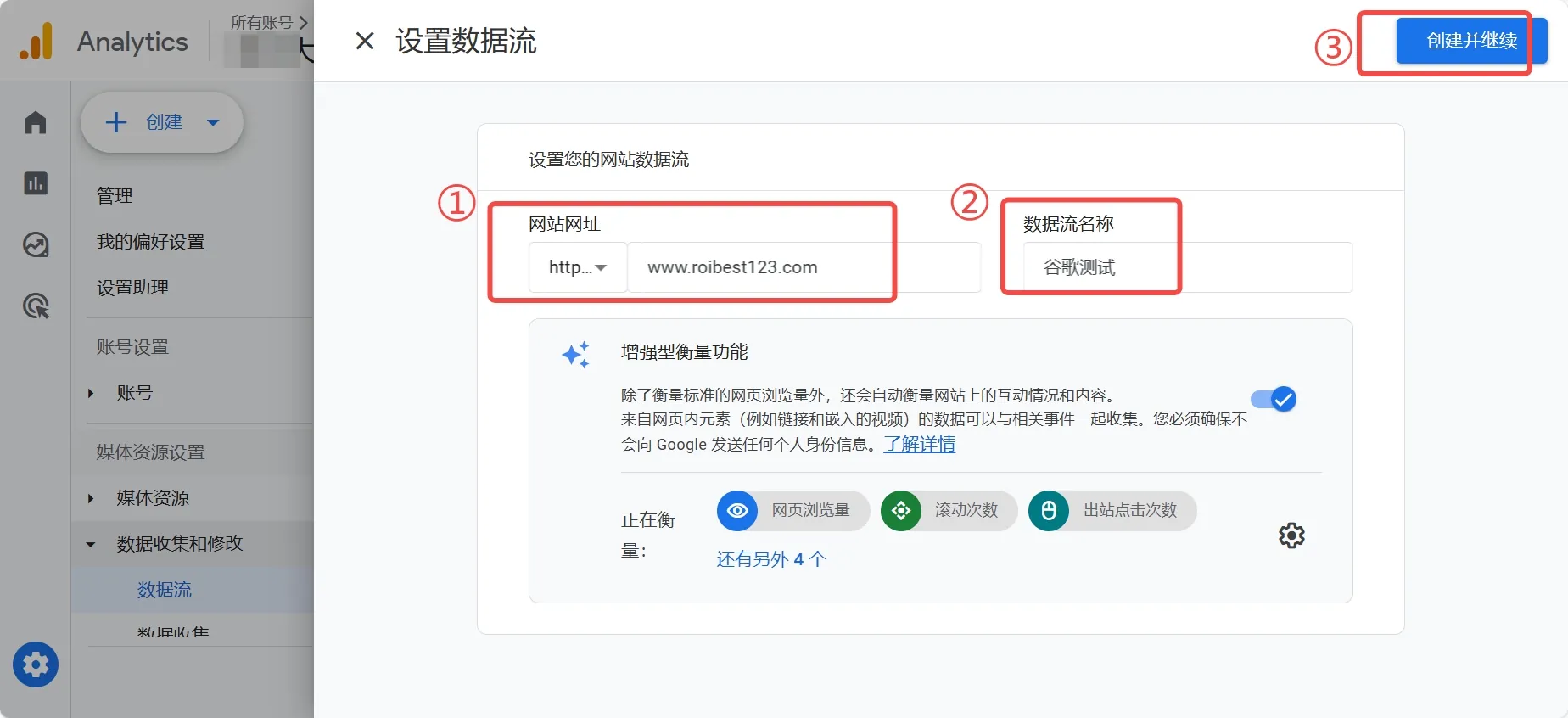
- Return to the Data Streams page, select the corresponding entry, and click position ② to open the stream detail page;
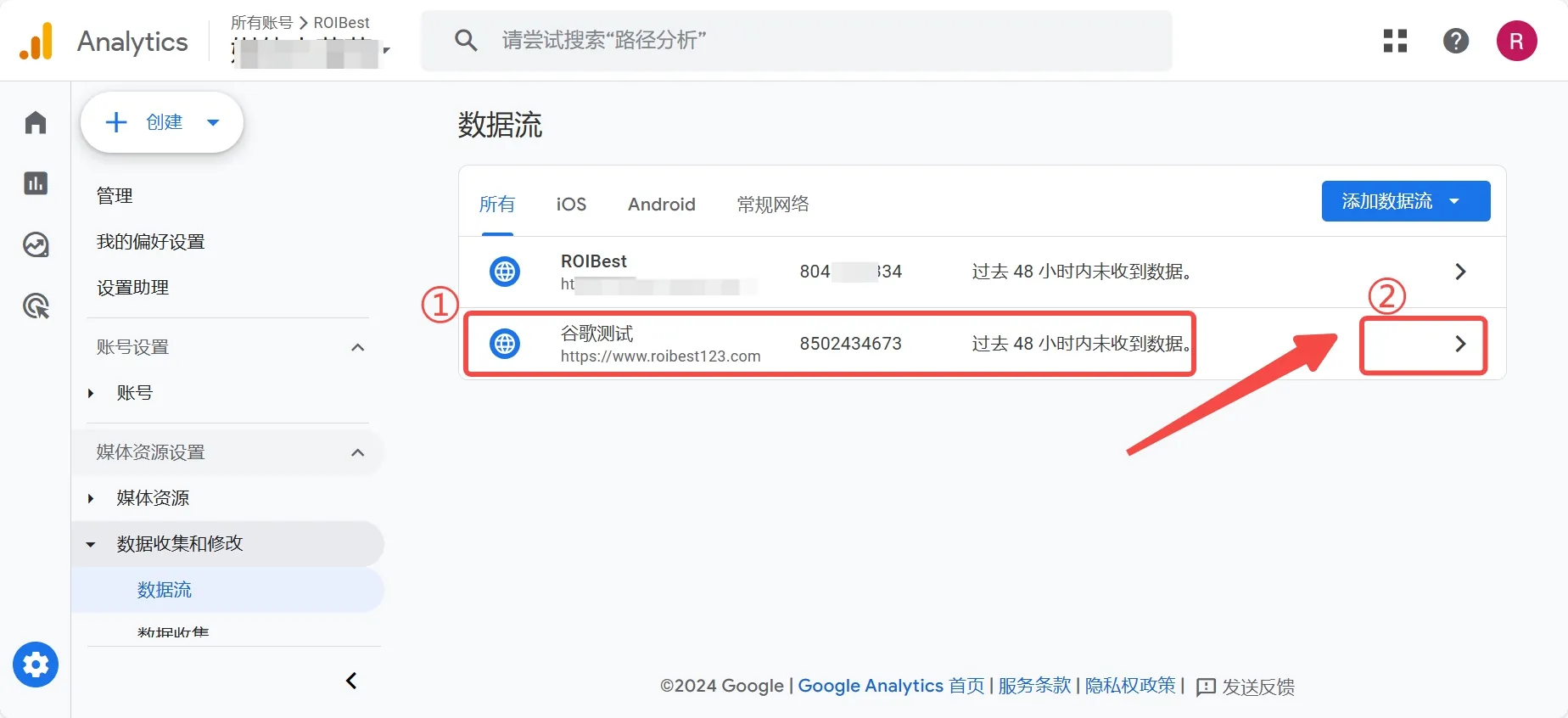
- Here you can obtain the Stream Name, Stream URL, Stream ID, Measurement ID, and other information;
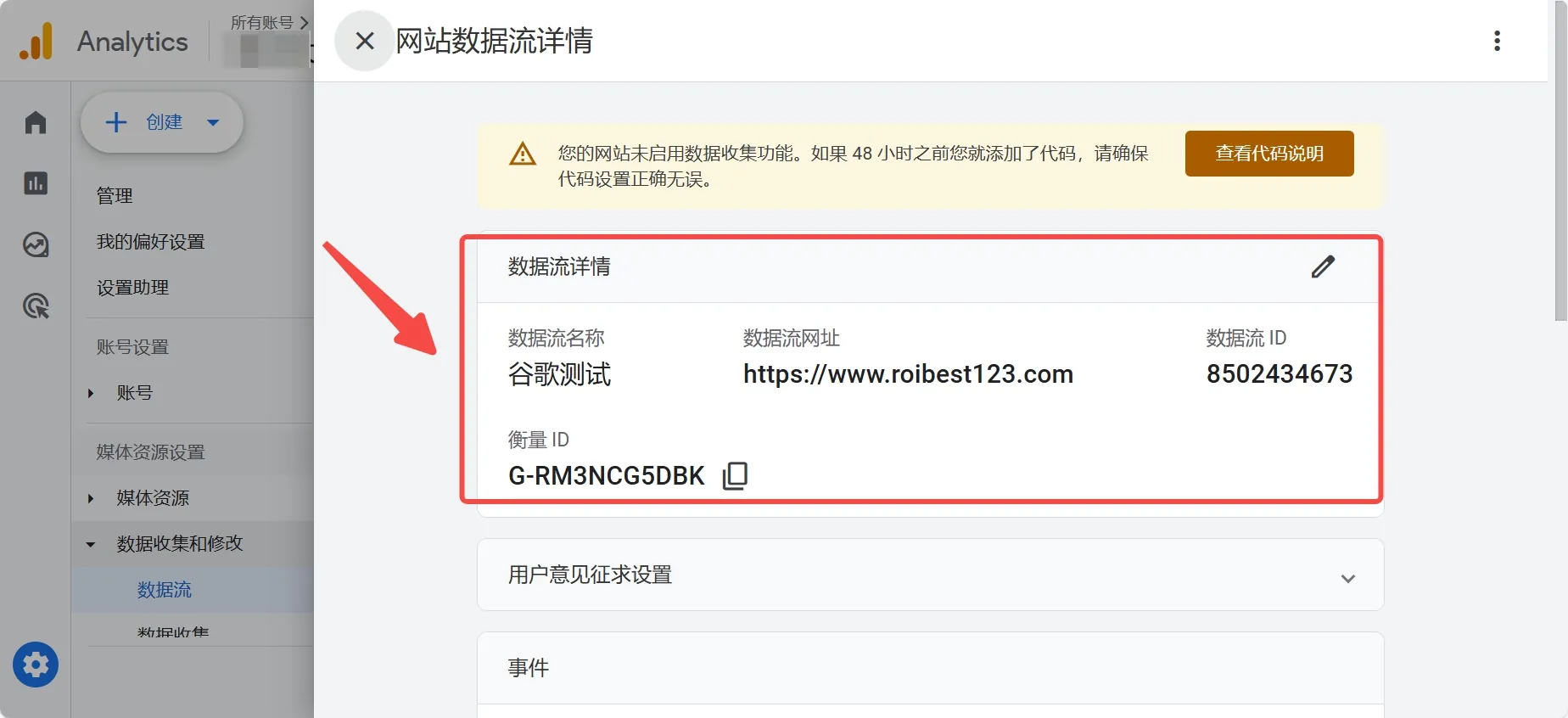
Step 3 - Enter the GA4 Data Stream in the ROIBest Dashboard
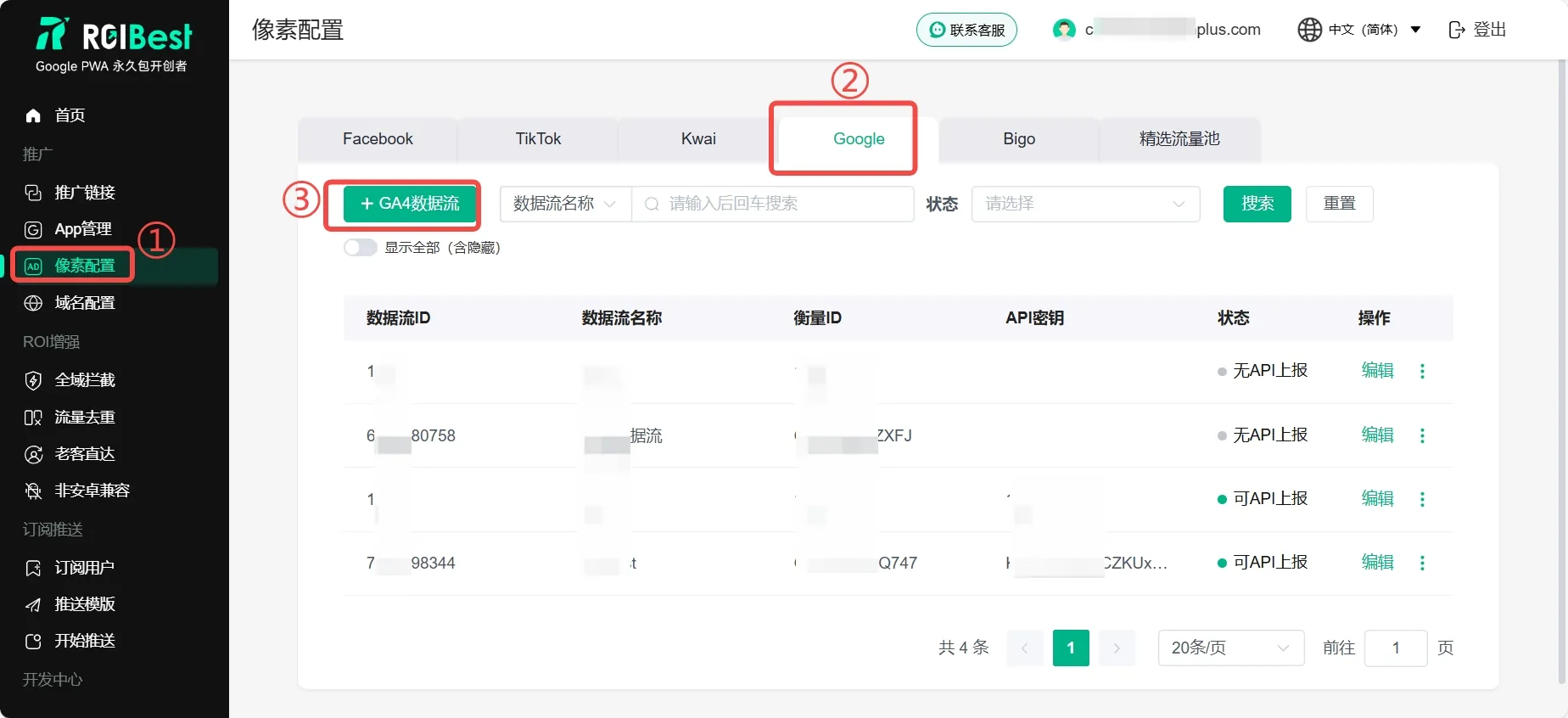
- Select [Pixel Configuration], go to [Google], and choose [+GA4 Data Stream];
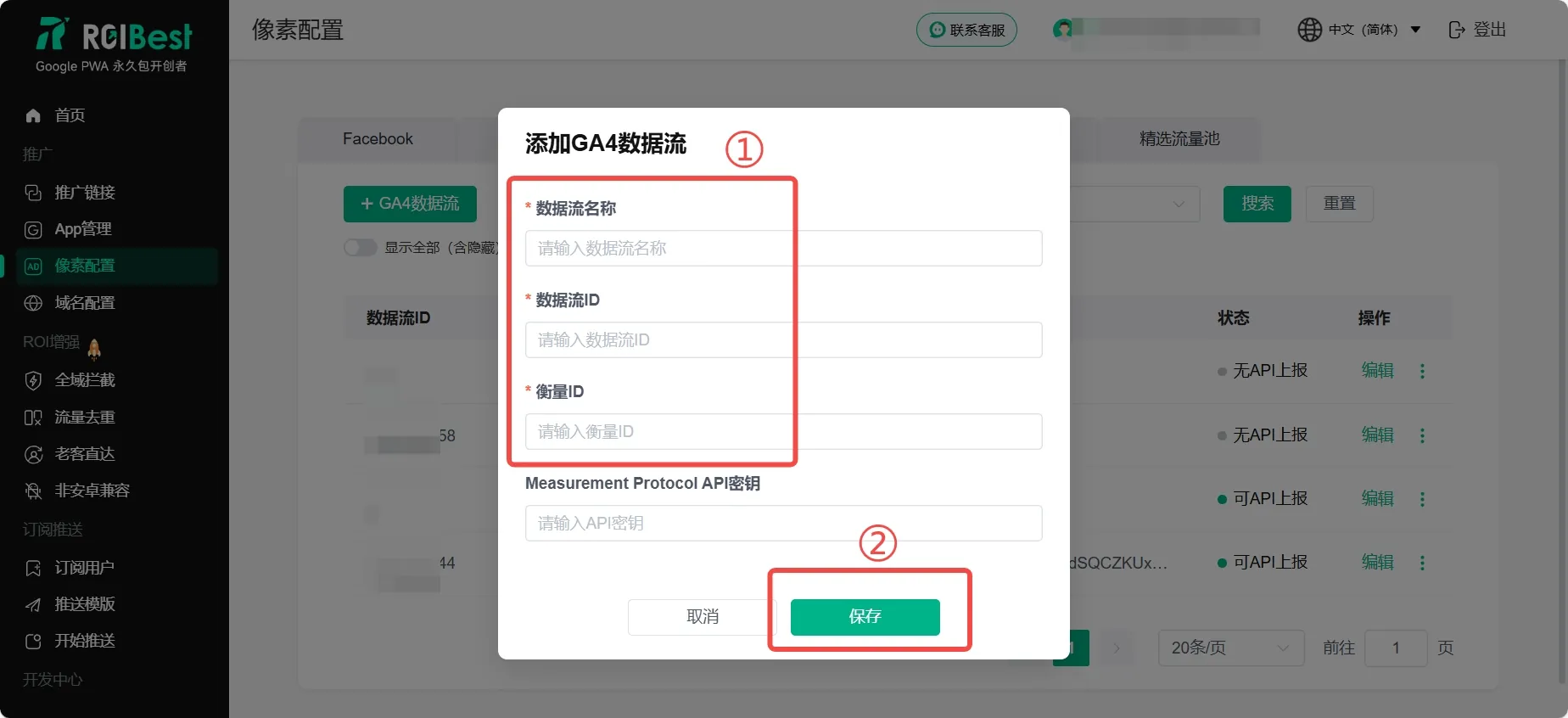
- Fill in the data stream information in the corresponding fields, then click [Save];
How to Import Data Streams in Google Ads
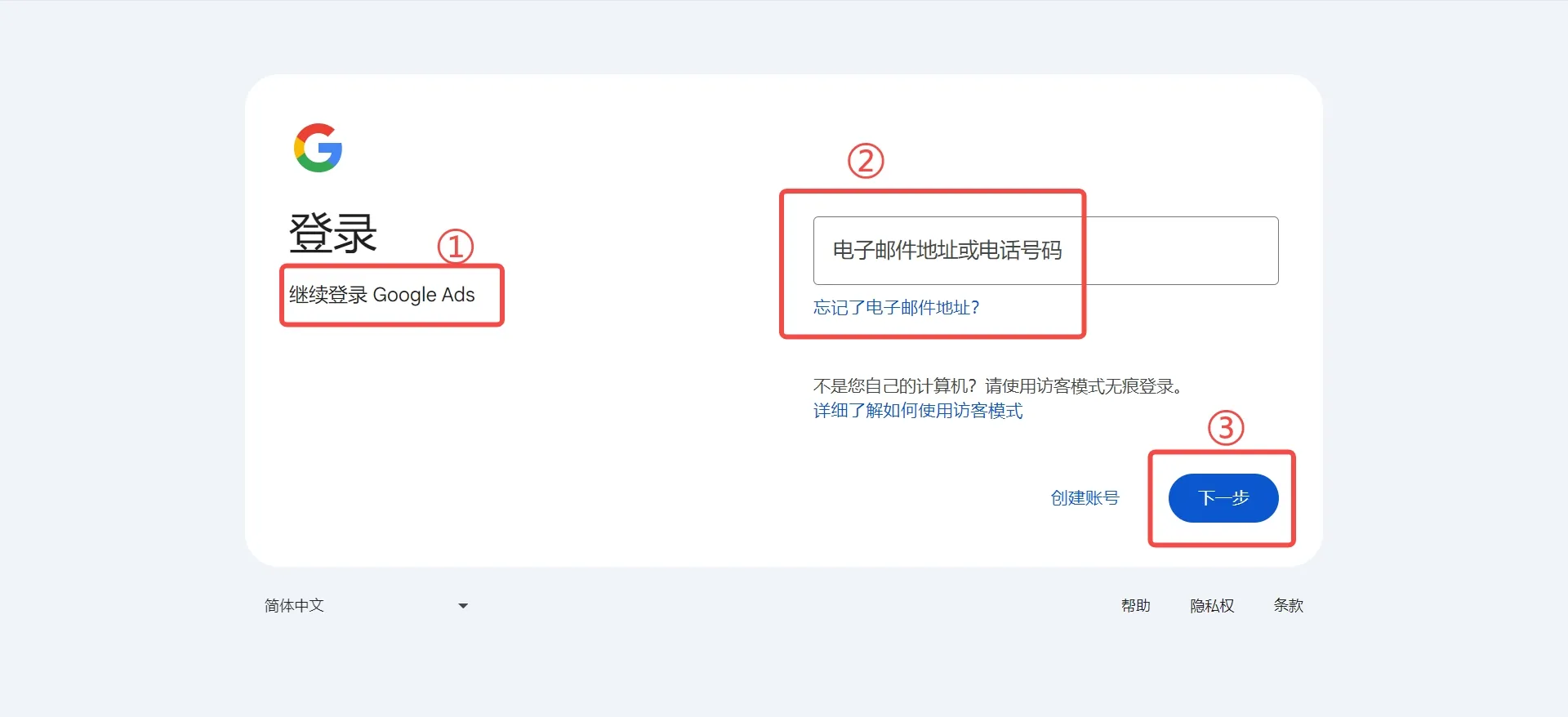
Step 1 - Log in to Google Ads
- Google Ads login URL: https://ads.google.com/. Please log in with your business promotion account;
Step 2 - Create a Conversion Goal
- In the [Goals] page, find [Summary], select [Conversion Goals], then click [New Conversion Action];
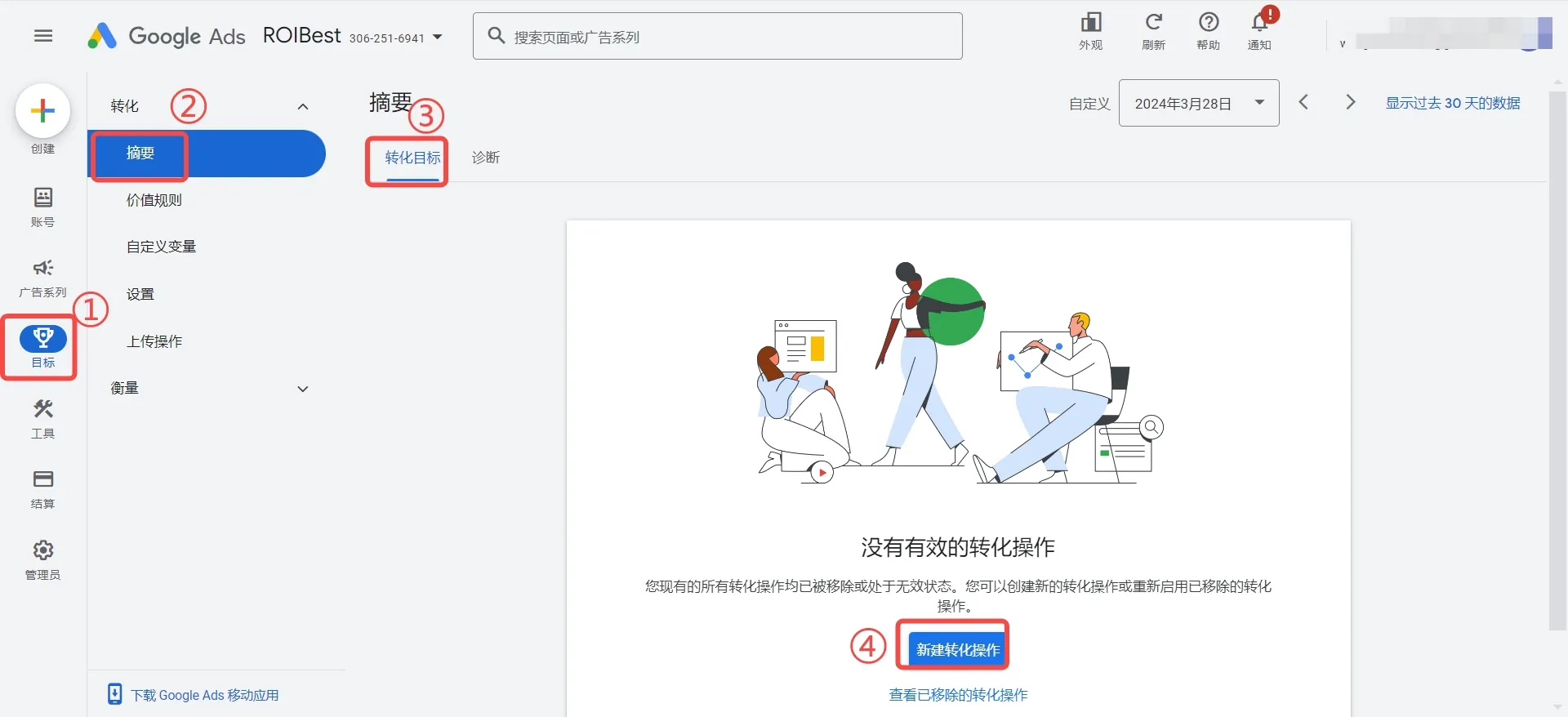
- Select [Import];
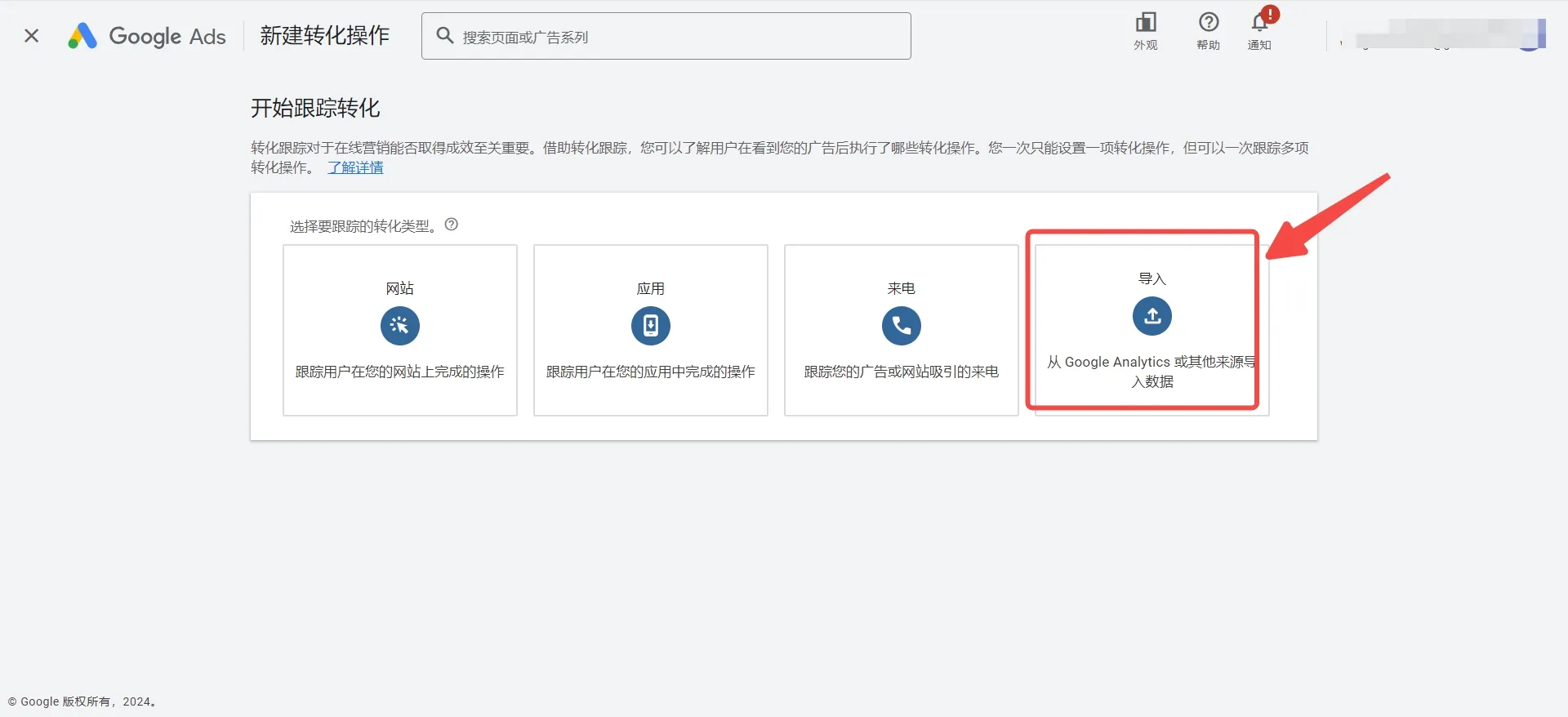
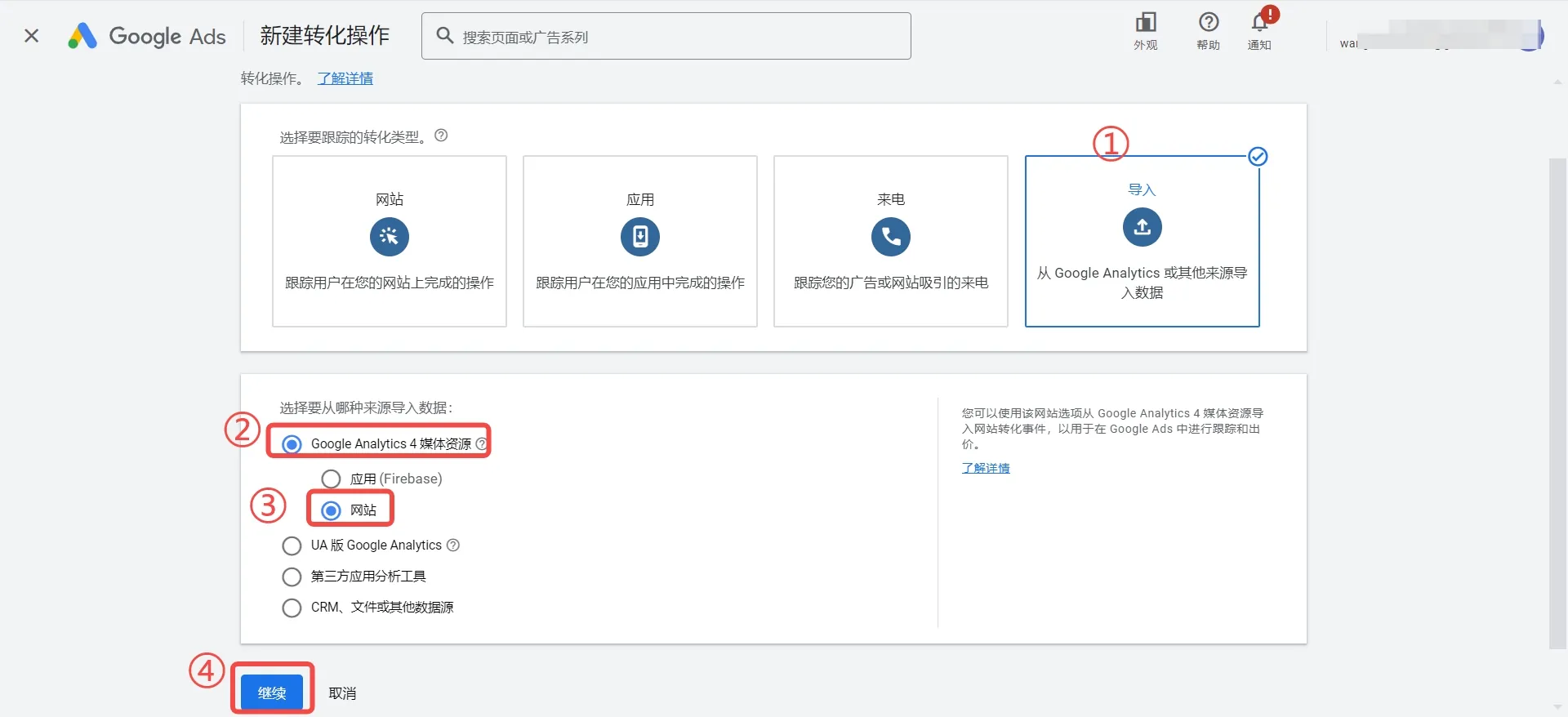
- Under [Google Analytics 4 Properties], select [Web], then click [Continue];
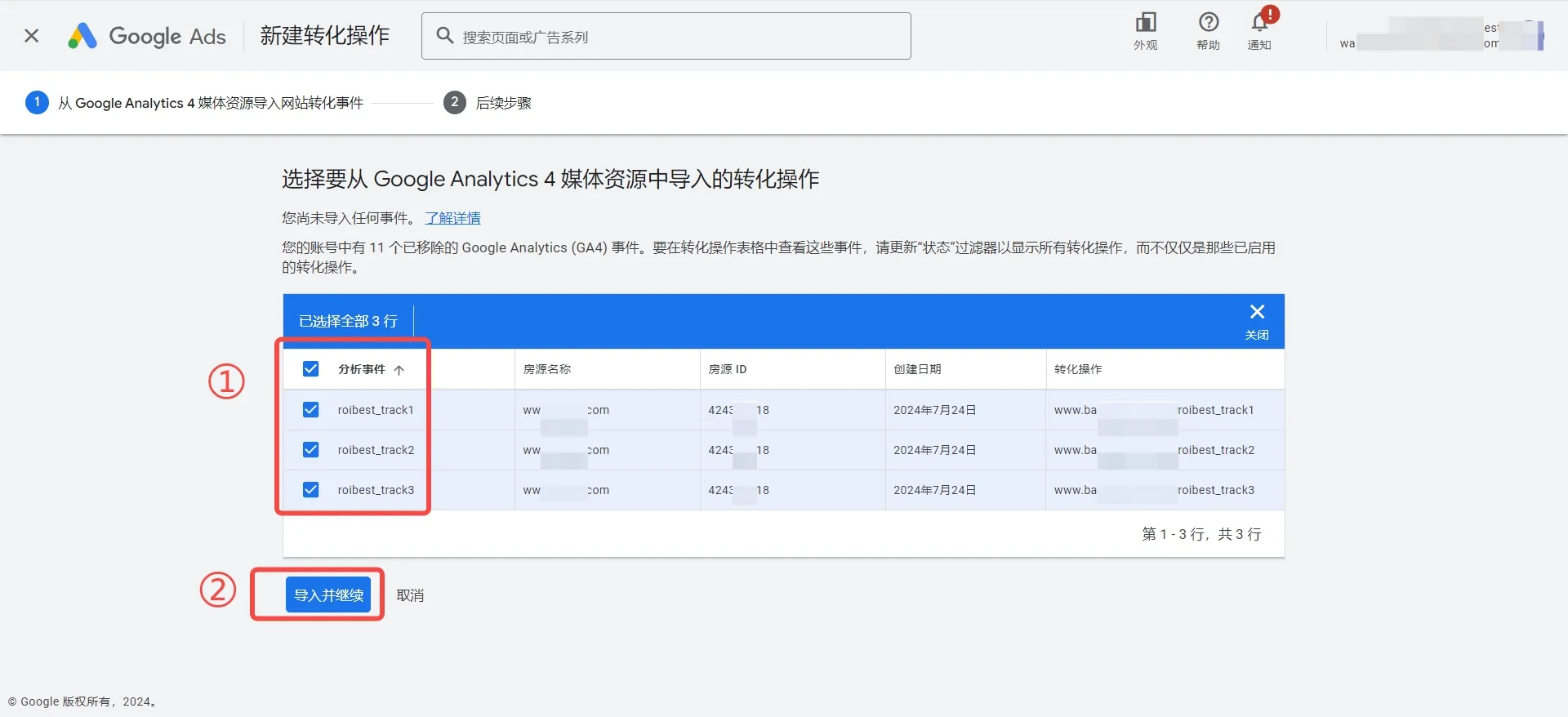
- Check the events you want to analyze based on your needs, then click [Import and Continue];
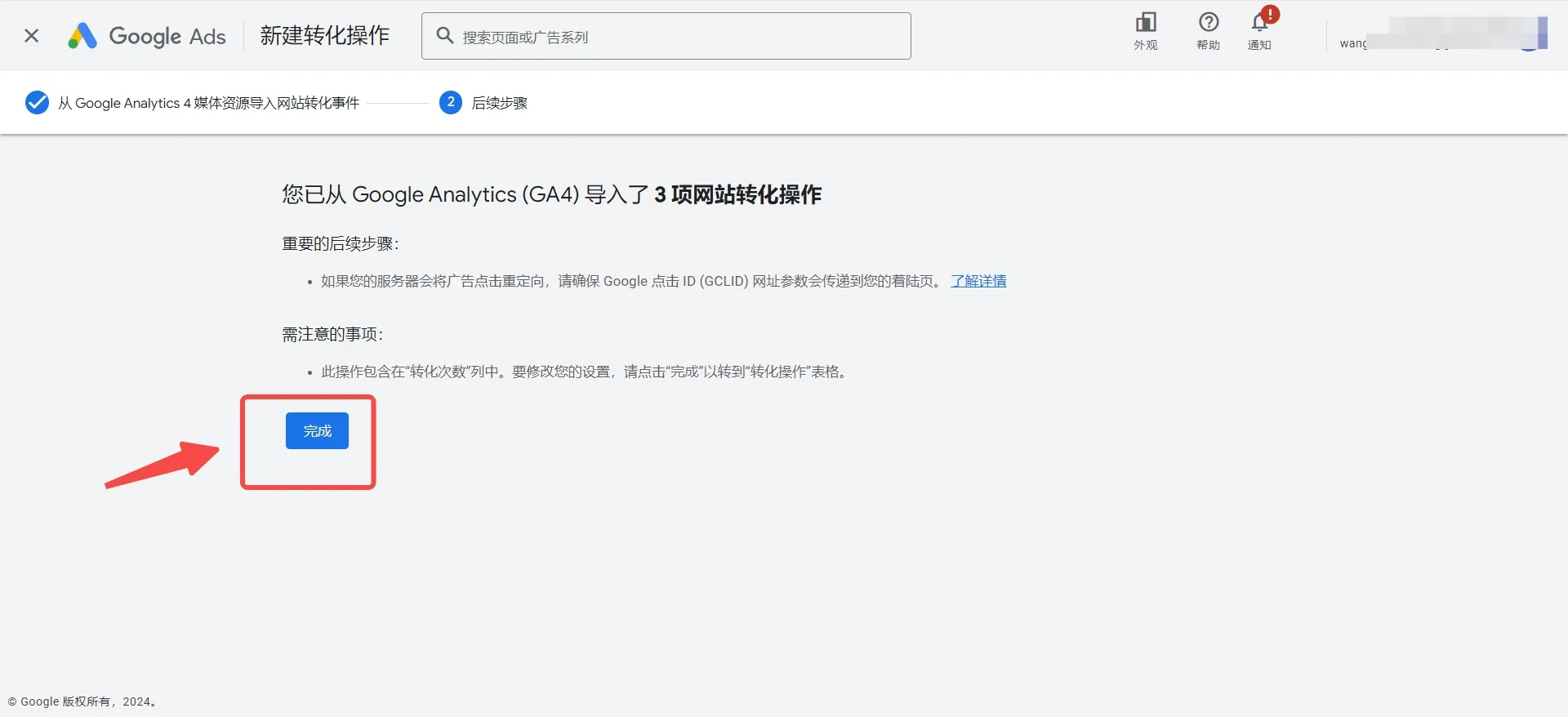
- Click [Done];
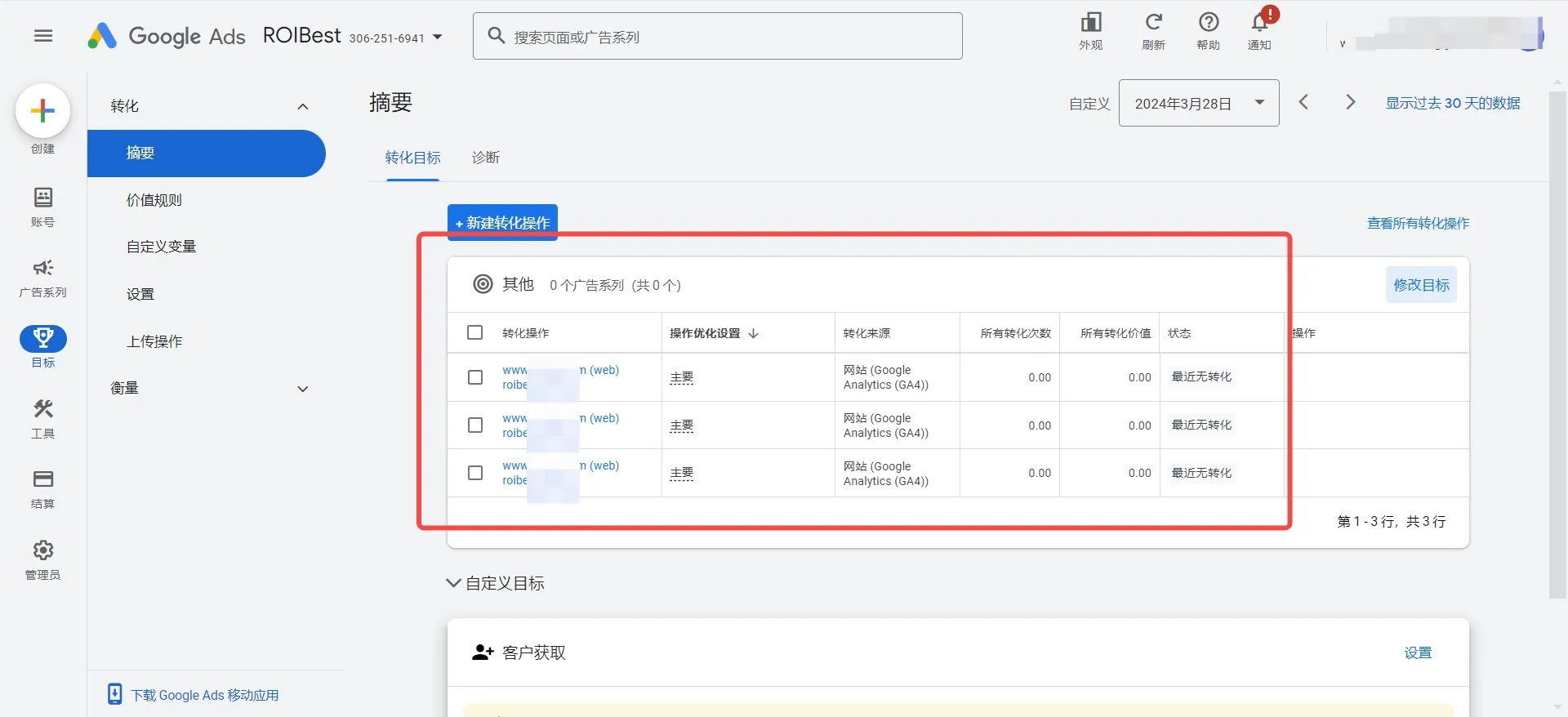
- Return to the Conversions page to view the conversion status of your events;
Step 3 - Link Google Analytics Account to Google Ads Account
If you have already linked your Google Analytics account (i.e., GA4 account) to your Google Ads account, you can skip this step. If not, follow the steps below:
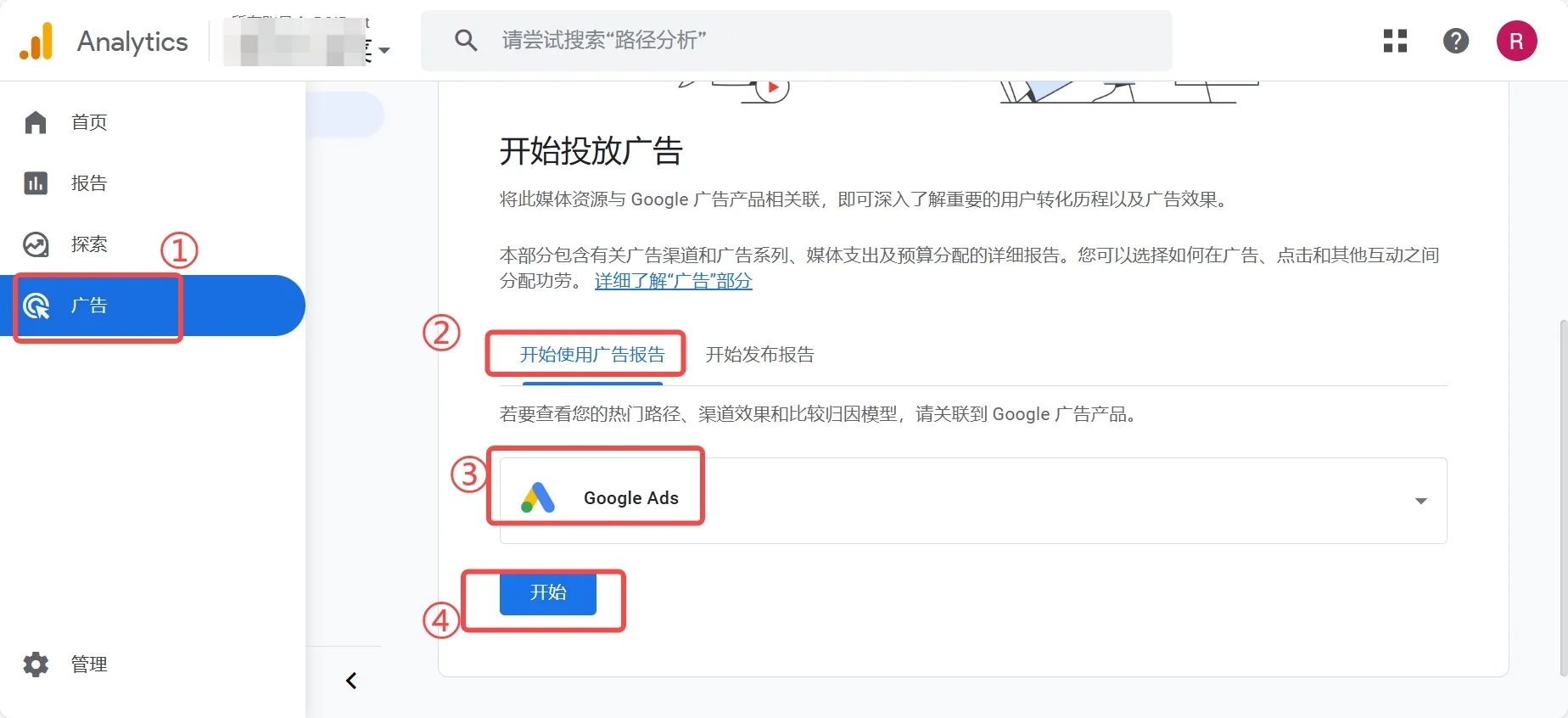
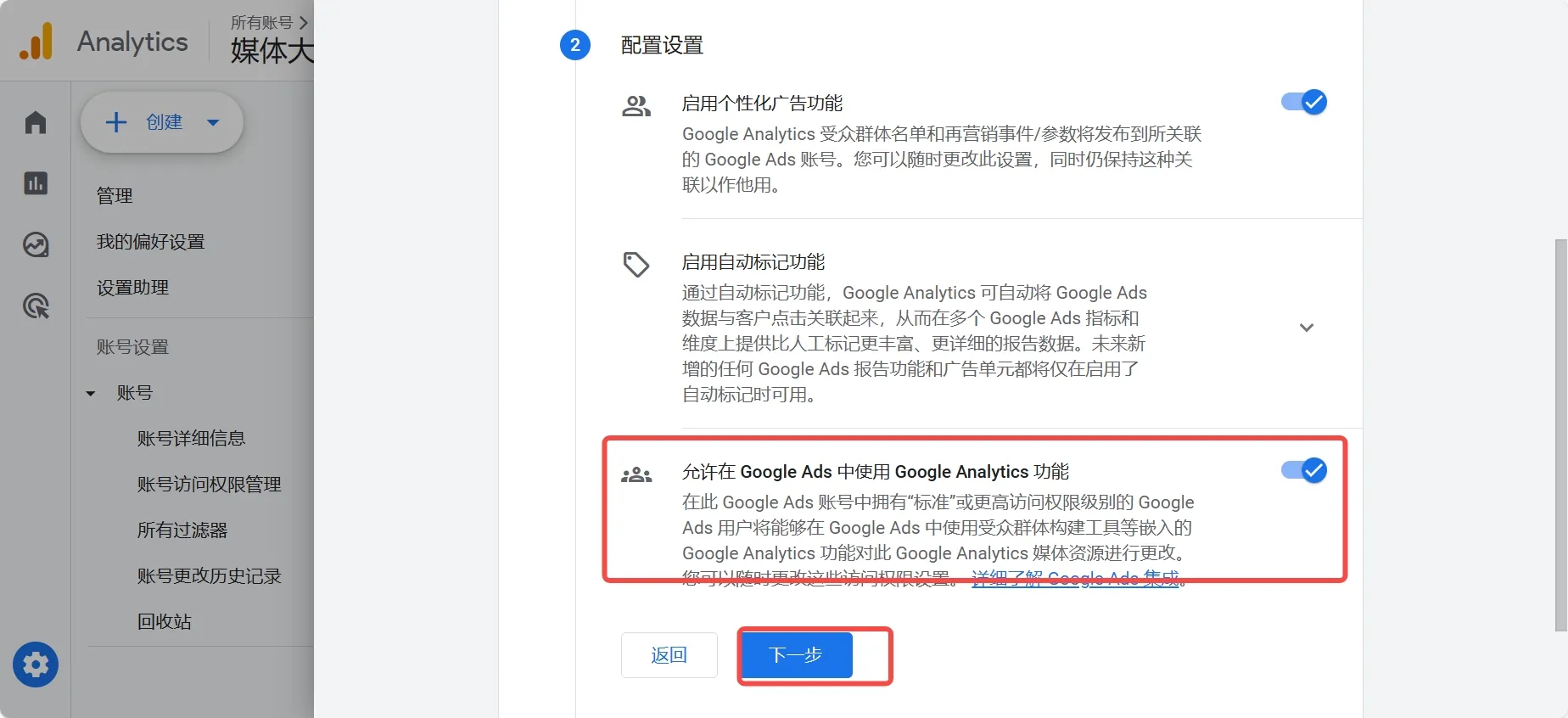
- In the [Advertising] section, find [Get Started with Advertising Reports], then click [Google Ads];
- Select the ad account you want to link;
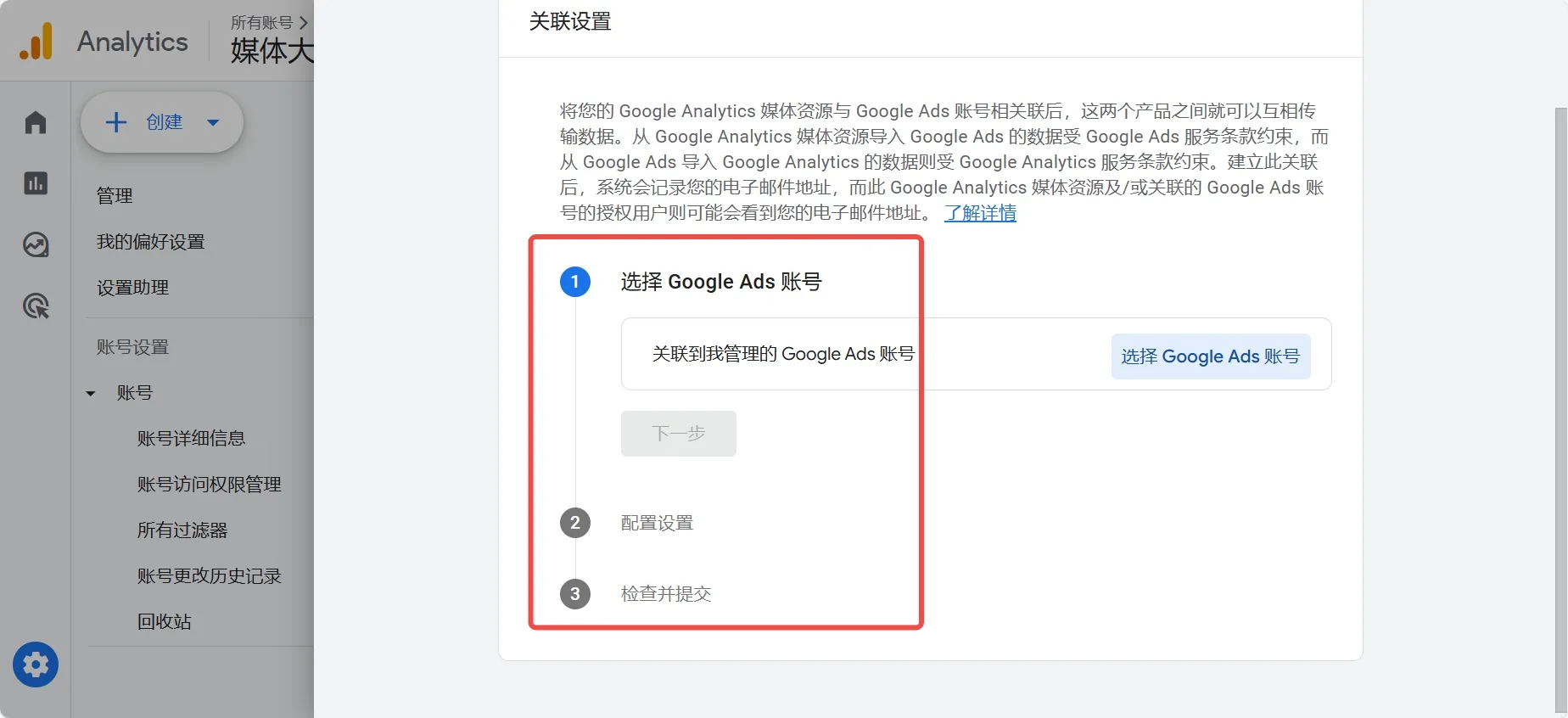
- Select [Allow Google Analytics features in Google Ads], click [Next], and complete the configuration;
Step 4 - View Ad Event Data
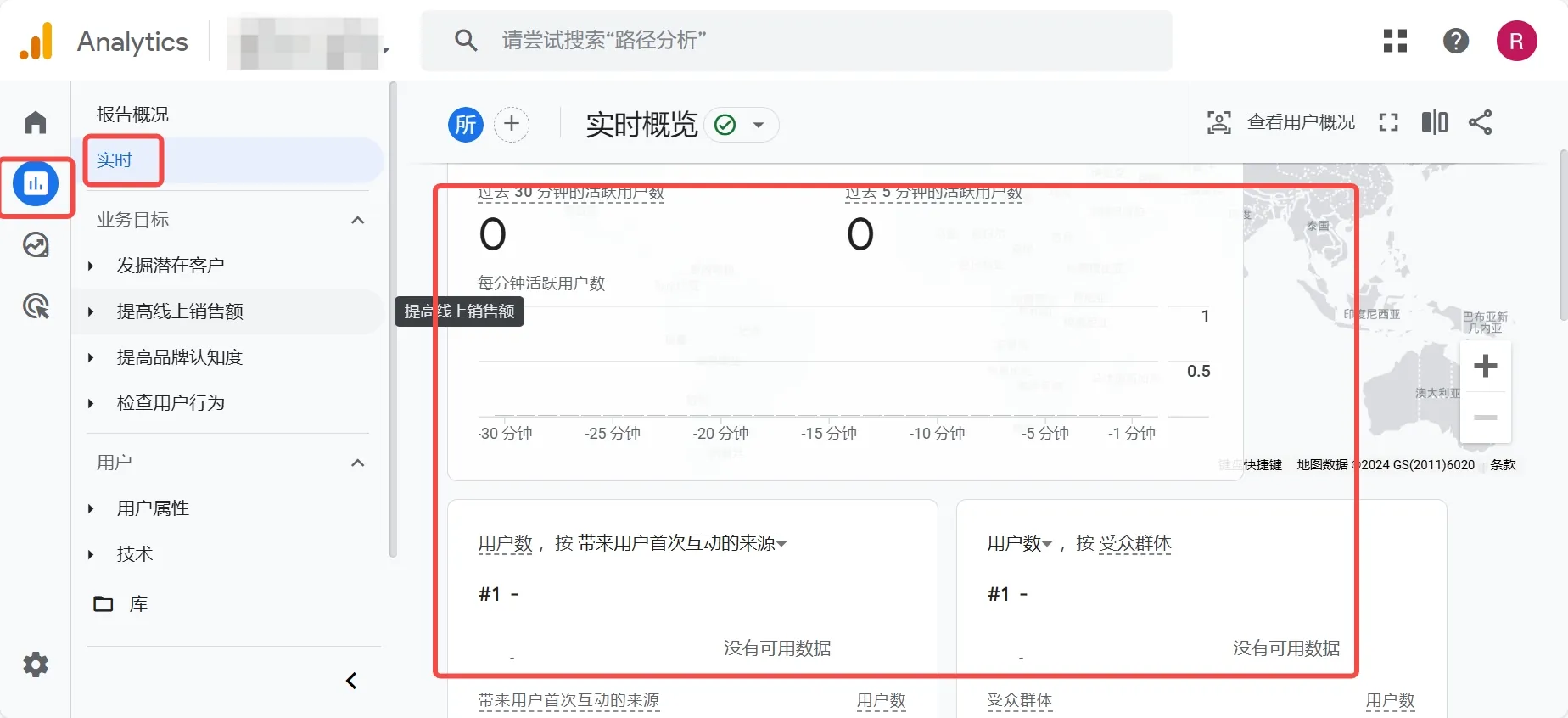
- Return to the Google Analytics account. In the [Reports] section, click [Realtime] to see the postback data from your ad campaigns;